Getting Paid Through Houzz Pro Online Payments
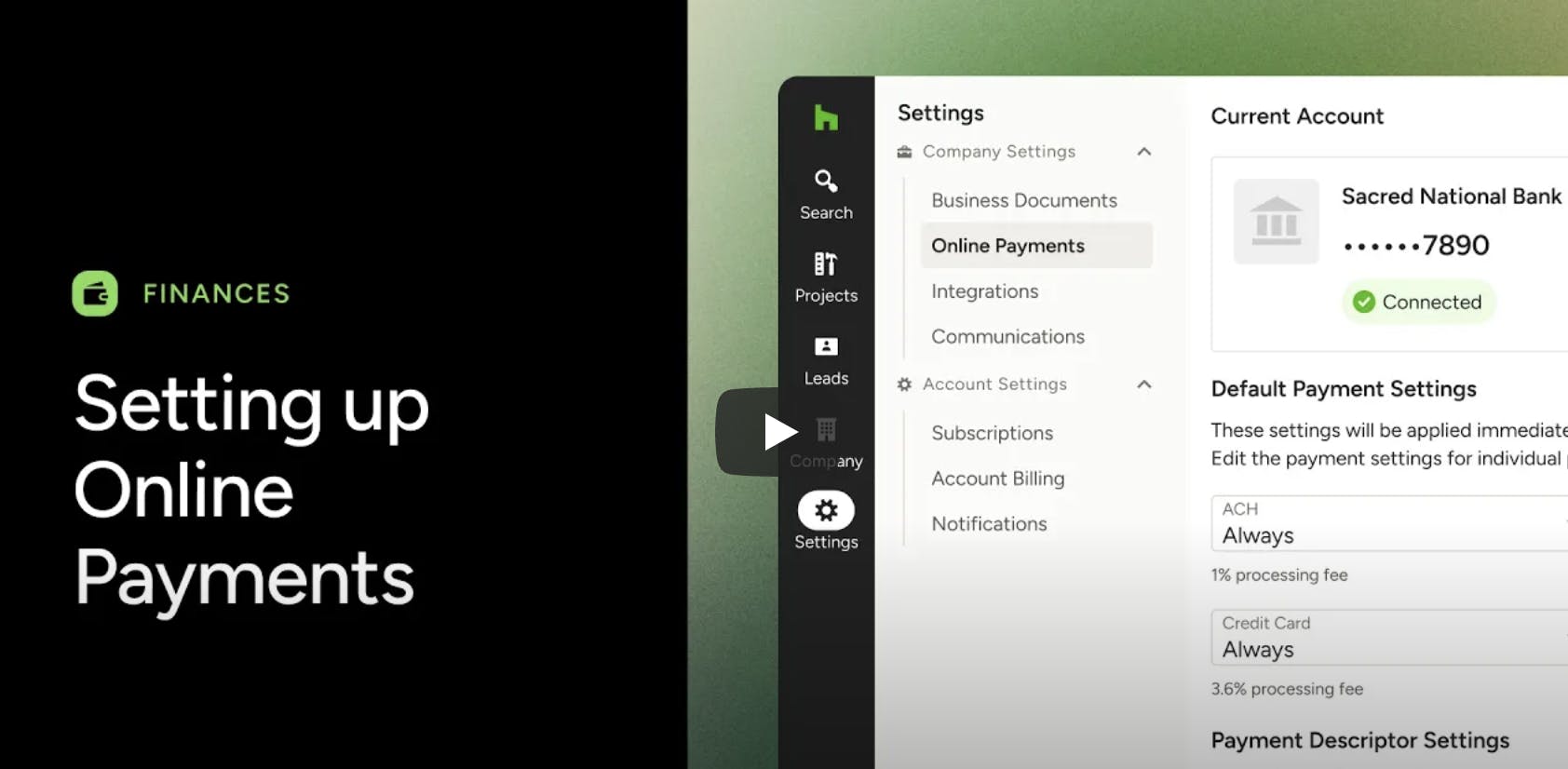
Houzz Pro online payments gives you an easy, convenient and secure way to receive payment from your client.
Why Use Online Payments?
When your client pays you directly on the Houzz Pro platform, those payments are automatically logged in your estimates/proposals and invoices without the need to manually input them. This saves you time and ensures accurate records for your business.
If you're synced with QuickBooks Online or Xero, a record of your online payments are logged automatically on documents and also automatically synced over to Quickbooks Online, which avoids the headache of double entry. See this article to learn more about syncing Houzz Pro to QuickBooks Online.
Using Houzz Pro for online payments is also a great benefit to your client, who has the convenience to pay online by either credit card or Bacs direct debit. They will have a digital record of payments made through Houzz to use for their personal records or for tax purposes if needed.
How to Set Up Online Payments
Ready to get started with online payments? Here's how to do it.
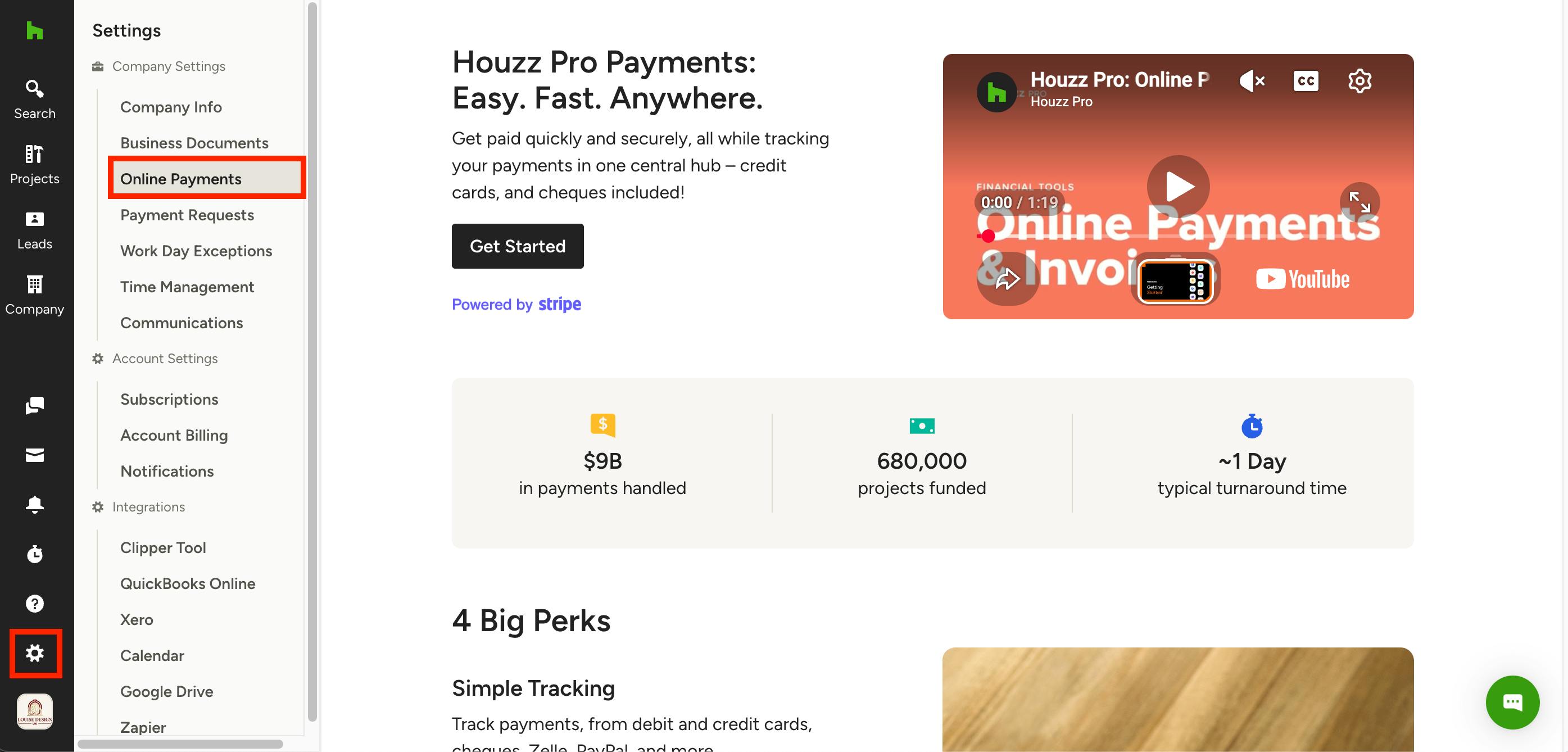
1. Click on the Settings gear in your left-hand navigation. From there, select Online Payments.
2. Click Get Started.
3. You will need to input the following bank account details:
- Business Type: Individual/Sole Trader, Company, Non-profit
- Business Structure : LLP, Unincorporated Partnership/Association, Private or Charitable company
- Account information: Sort Code, Account Number, Companies House Registration Number (CRN)
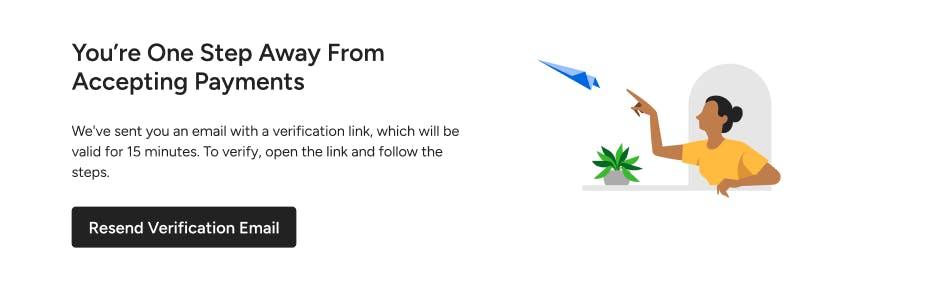
4. You will receive a verification link to your email address.
5. Click Verify My Account. Once you click Verify My Account, it can take up to an hour for your bank details to be approved. Following approval, your clients will be able to submit online payments through Houzz Pro.
In some cases, banking regulations might require you to provide additional information prior to your approval. In these cases, you'll get an email from Houzz Pro with a link to a verification page. There you'll find a list of additional information needed in order to verify your account.
Once online payments have been set up, you can edit your payment settings to control which payment methods you want to make available to your clients.
Online Payment Transaction Fee Rates
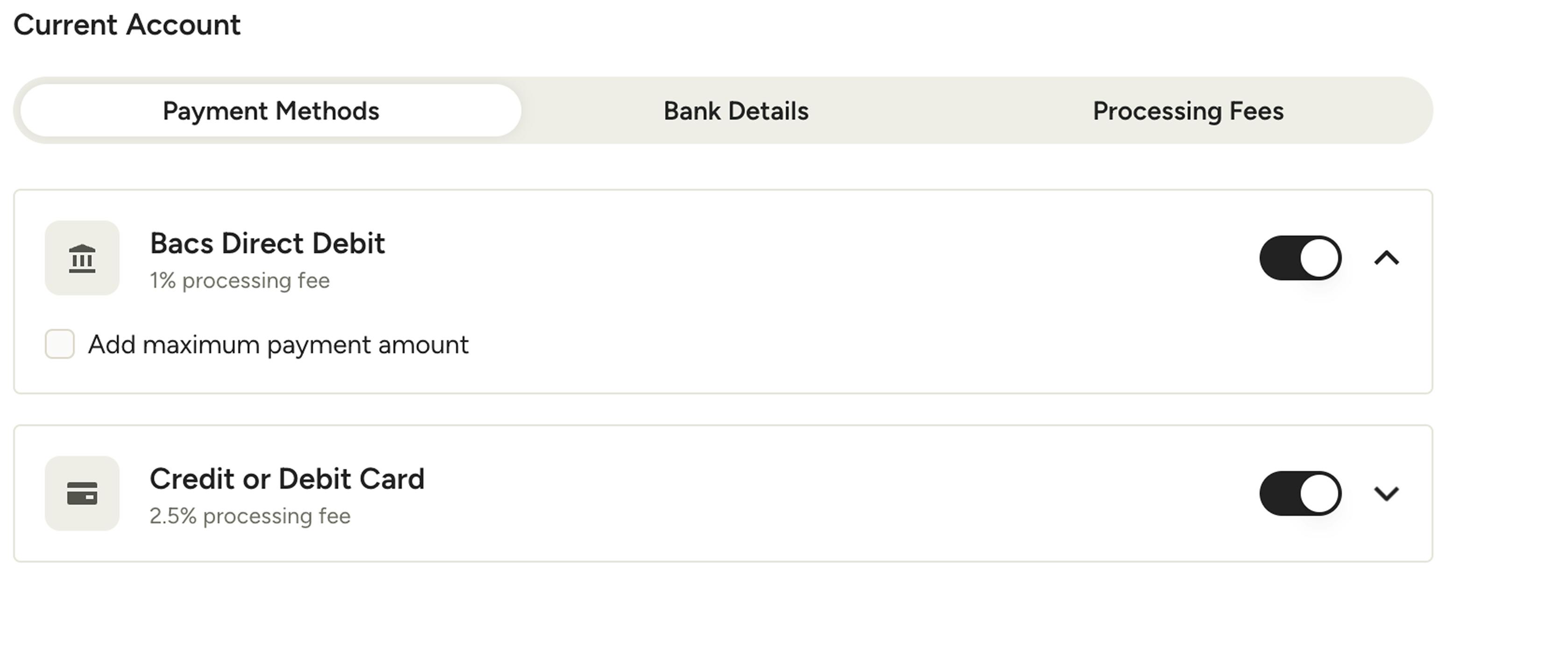
Houzz Pro offers competitive, flat rate transaction fees:
In the UK there is currently no option to pass online payment transaction fees on to your client.

How Long Does it Take to Get Paid with Online Payments?
When your client pays with online payments via Bacs direct debit, you can access your money within up to 3 business days. For credit card payments, you can access your money in 3-5 business days.
If you select our Instant Payout option for an additional 1% fee, you will receive your credit card or Bacs direct debit payment within 30 minutes*. You can learn more about Instant Payouts below.
*Please Note: Transfer times can vary by bank. Not all banks support instant payout.
Online Payment Processing Timeline
1. Your client pays by credit card or Bacs direct debit.
2. It takes up to 3 business days via Bacs direct debit or 3-5 business days via credit card to transfer the funds to your bank account.
Bacs Direct Debit Example: If you receive a BacsS direct debit payment before 2 p.m. EST, which is early morning UTC on the 25th, you should see the payout the next business day. For anything after 2 p.m. EST, the payout will appear within up to 3 business days.
Credit Card Example: If you receive a credit card payment at 12 p.m. EST on 24th April, which is early morning UTC on the 25th, you should expect to see the payout occur by the end of the day on the 27th UTC.
First Payment Process
In order to protect you from fraud, your first payment may take longer than normal to process, since we validate and review the transaction details. For first payments only, posting to your bank account may take up to 3-5 business days for credit card transactions, and for up to 6 business days for Bacs direct debit transactions. Future payments will follow the schedule listed above.
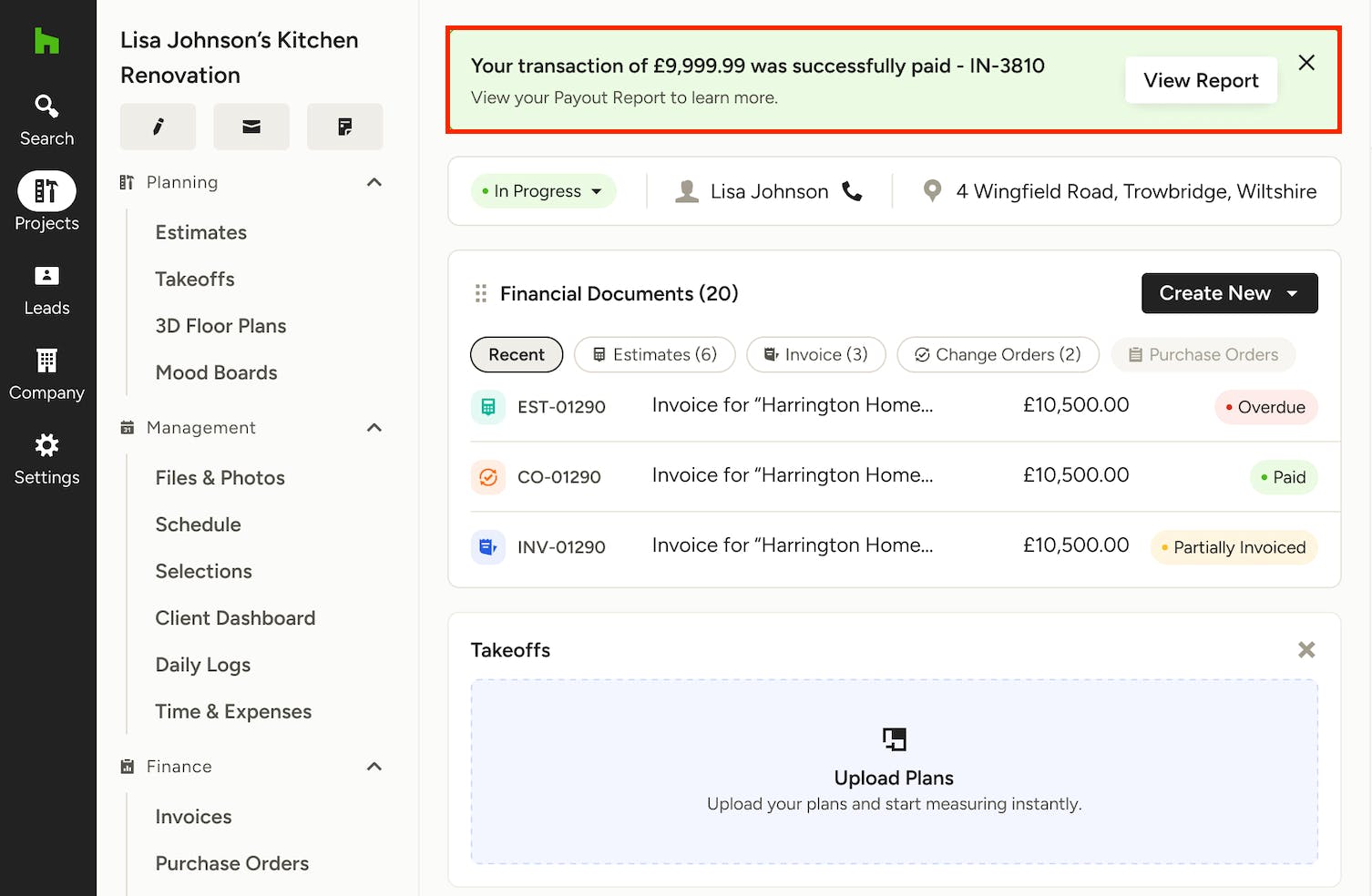
Online Payment Notifications
When your client pays you through online payments, you'll get notified via email immediately after the payment has been made. You'll be notified twice: Once when the payment has been paid and is pending, and once again when the payment has been authorised (once it's been processed and approved by the issuing bank).
The email will contain information such as the client's name, the payment amount, the processing fee, and a link to more details.
You will also receive a banner notification on your Houzz Pro homepage, as well as on your project overview page. You will be able to see if a payment was paid or unsuccessful, as well as if it is pending, in-transit, or cancelled.
You can also always keep track of all your online payments using the online payment filter in the Financial Reports section.
Instant Payouts with Online Payments
Instant Payouts are an easy way to fast track the payment process and ensure you get paid as soon as you need to. If you opt in, you will pay an additional 1% fee to receive your client's payment within 30 minutes (timing can vary by bank).
With Instant Payouts, you have a lot of flexibility when it comes to how you get paid:
- You can manually opt for instant payment on just one specific payment.
- You can opt in to automatically receive instant payments for all your client payments.
- You can use instant payments for a portion of the payment amount, or for all of the payment amount.
Although many banks support Instant Payouts, not all banks do. If your bank does not support it (see the list here), the Pay Out Now option will not appear, and you will not be able to receive instant payments.
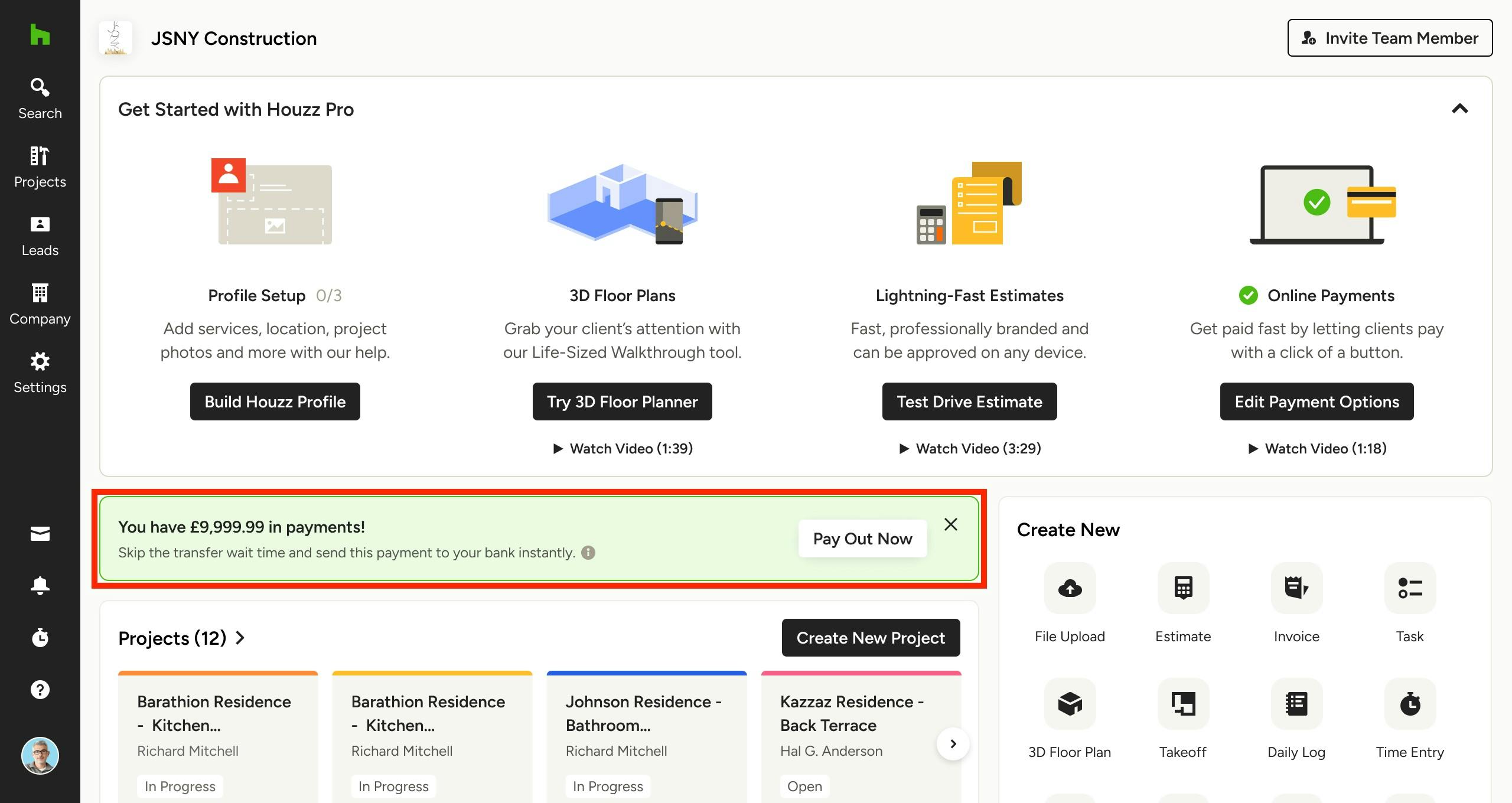
How to Use Instant Payouts
1. When a client pays you through Houzz Pro, you will receive an email notification about the payment, as well as a notification within the Houzz Pro software. To skip the transfer time and receive an instant payment, click Pay Out Now.
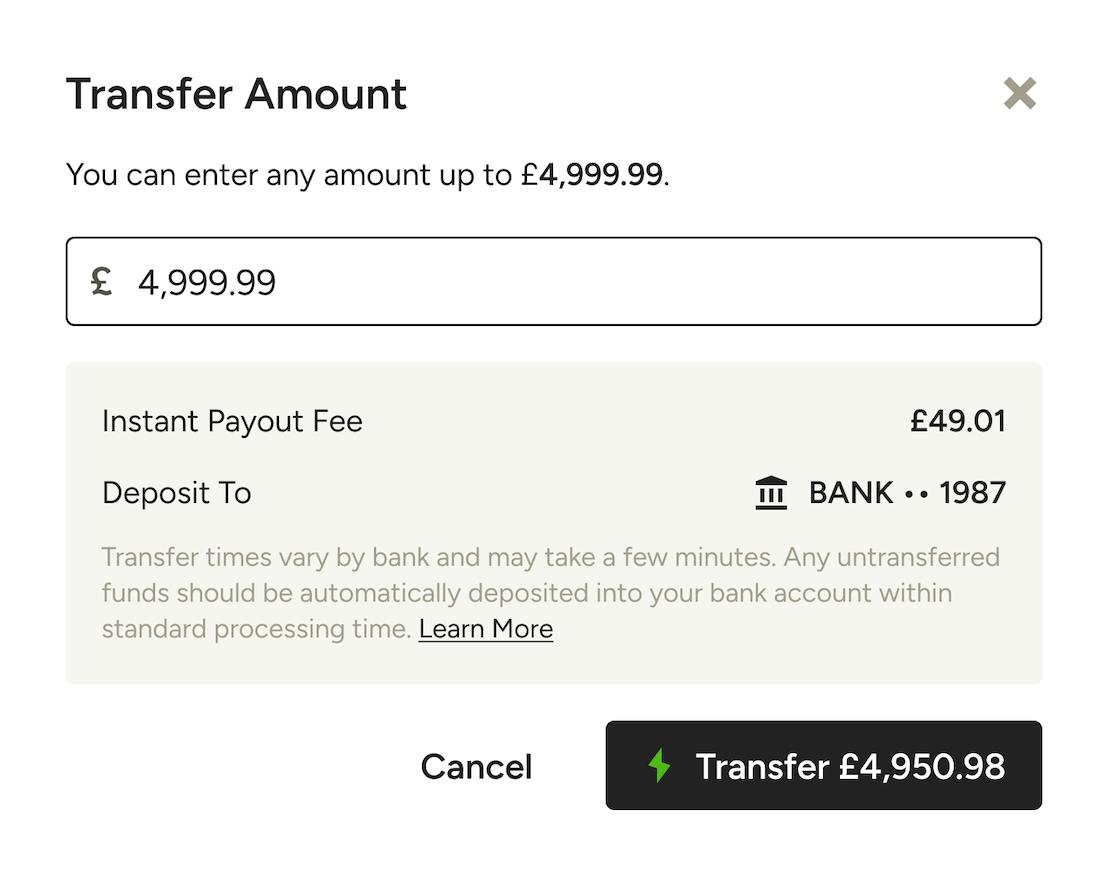
2. You can then select the transfer amount for this payment. You can decide to transfer all of the amount available, or just a portion. If you select a portion for instant payouts, the remainder of the payment will be deposited into your account within the standard processing time and with the standard fees.
The Instant Payout fee is 1% over and above the credit card or Bacs direct debit processing fee, so you will notice that listed here. To continue, click Transfer.
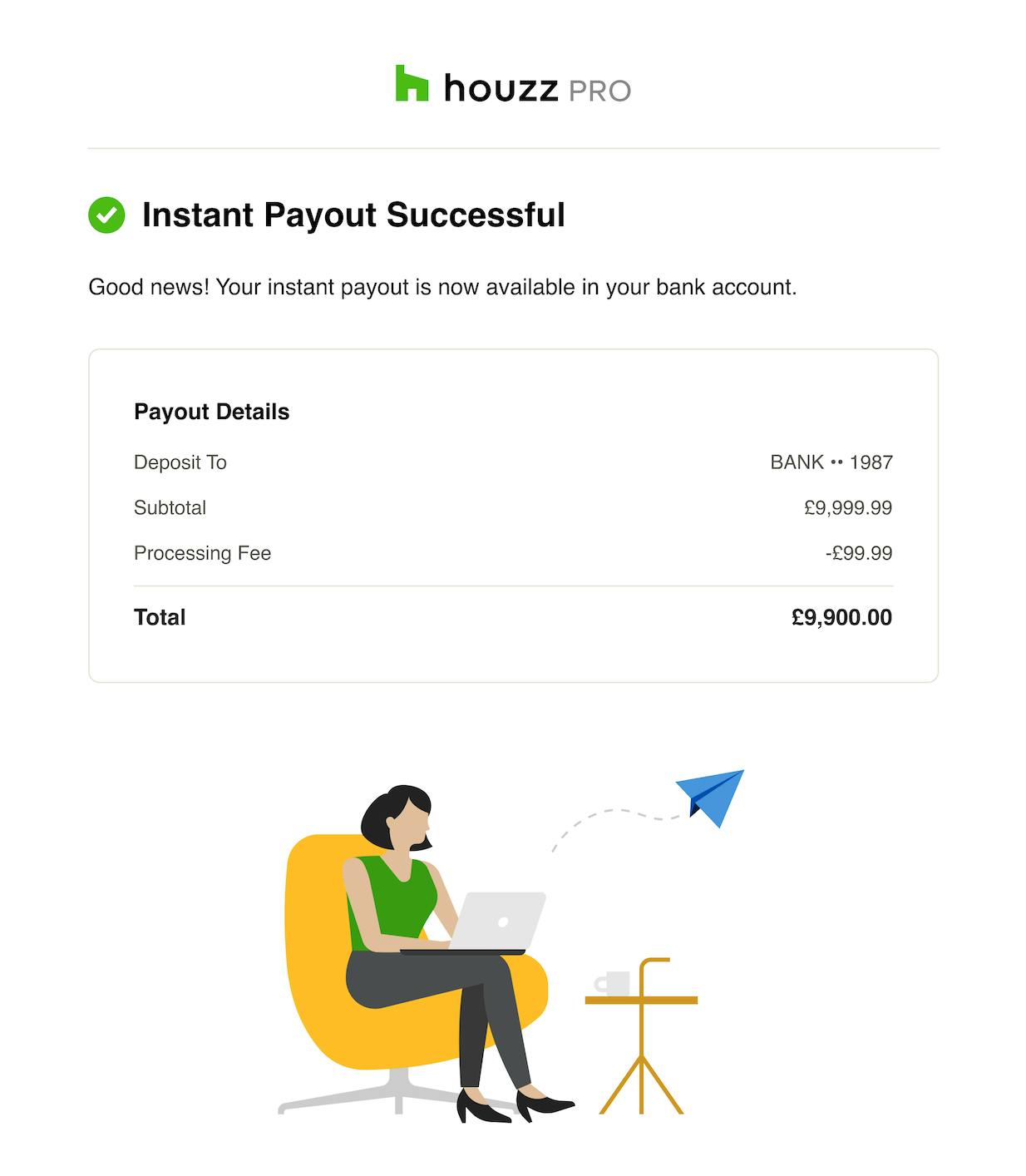
3. You will receive a transfer confirmation in Houzz Pro, as well as an email confirmation, and your funds should arrive shortly!
If there was an issue with your transfer, you will receive an error notification and be asked to try again.

Opt in for Instant Payouts
If you would like to automatically receive Instant Payouts for every payment you receive through Houzz Pro (up to £10,000 transaction volume per day), you can enable this in your Online Payment settings.
1. To start, click on the Settings icon in your left-hand navigation, then select Online Payments from the left menu.
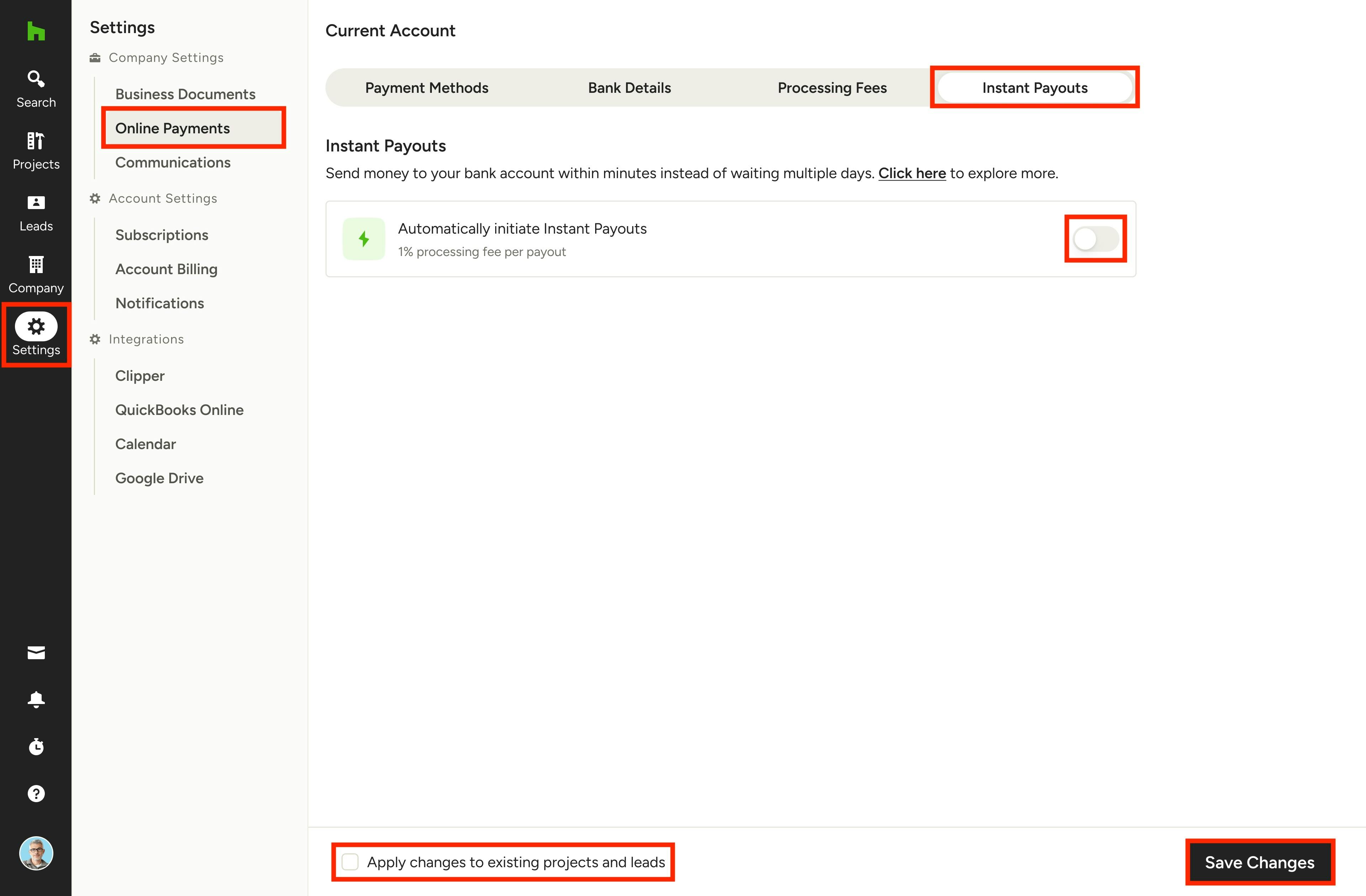
2. To enable instant payouts for every payment, turn the toggle on.
By default, your changes will only impact future projects and leads. If you would like to apply changes to existing projects and leads as well, be sure to check the Apply Changes to Existing Projects and Leads box at the bottom of your screen.
Once complete, click Save Changes at the bottom.
Instant Payouts in Payment Reports
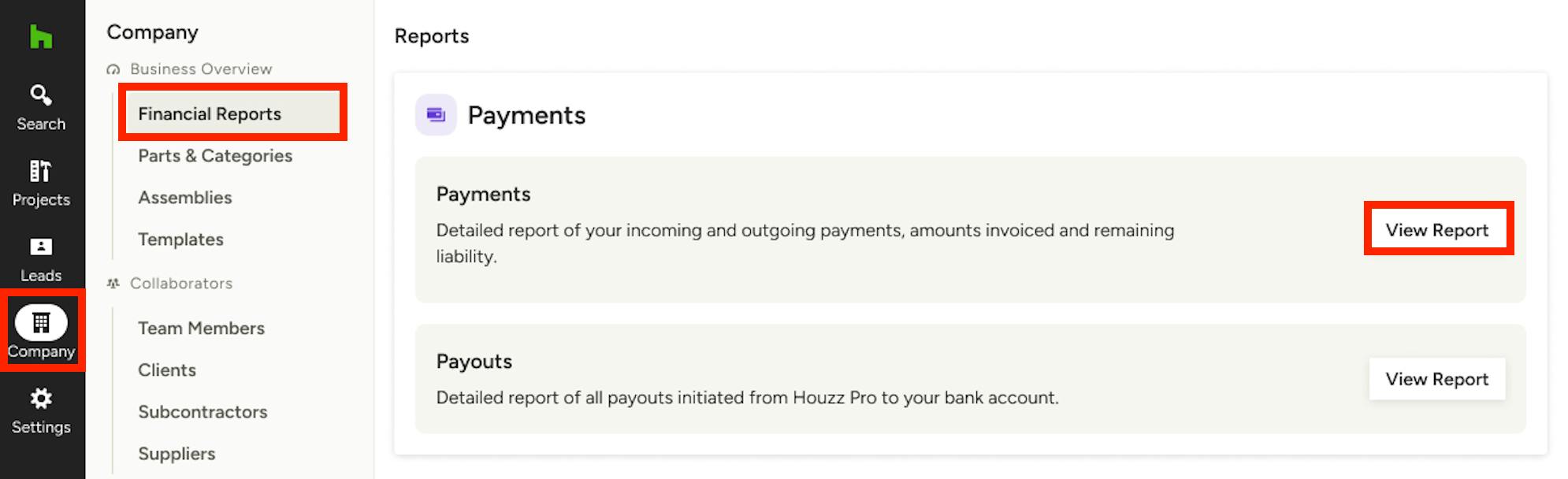
All your Instant Payouts will be documented in both the Payments Report and Payouts Report. To access these reports, select the Company icon, then click on Financial Reports in the left menu.
Select View Report under the Payments report you would like to view. Don't know the difference? Read Introduction to Financial Reports to learn more.
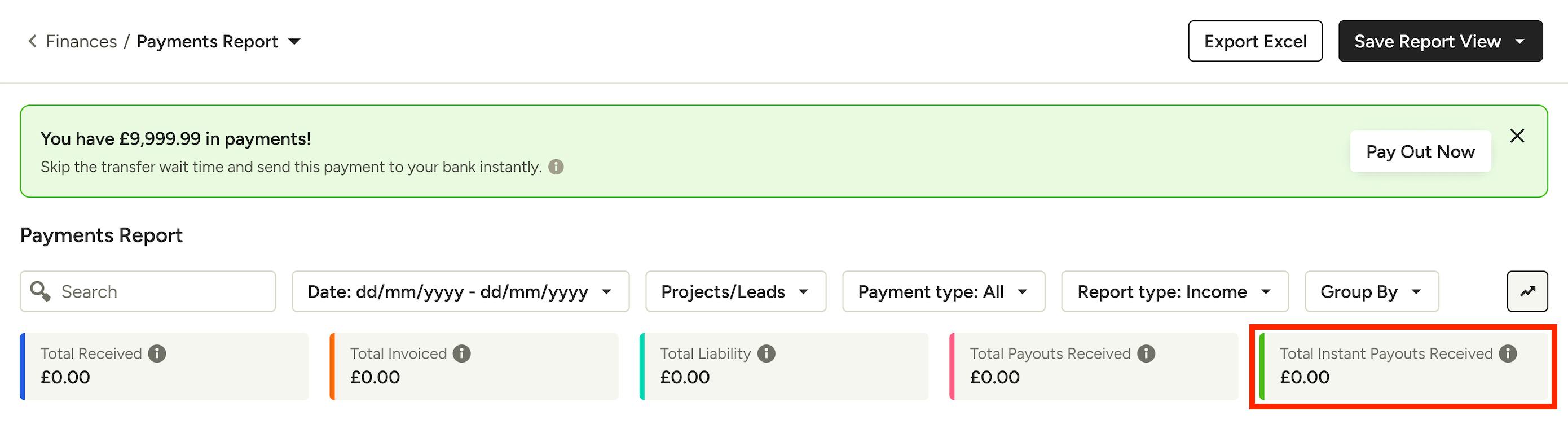
Your total Instant Payouts details will be displayed in the report, as shown here at the top of Payments Report.