How to Import Your Suppliers
In Houzz Pro you have a space to store the contact information for all your suppliers. It's simple to import lists so that all your suppliers' information is ready for you to use across the platform.
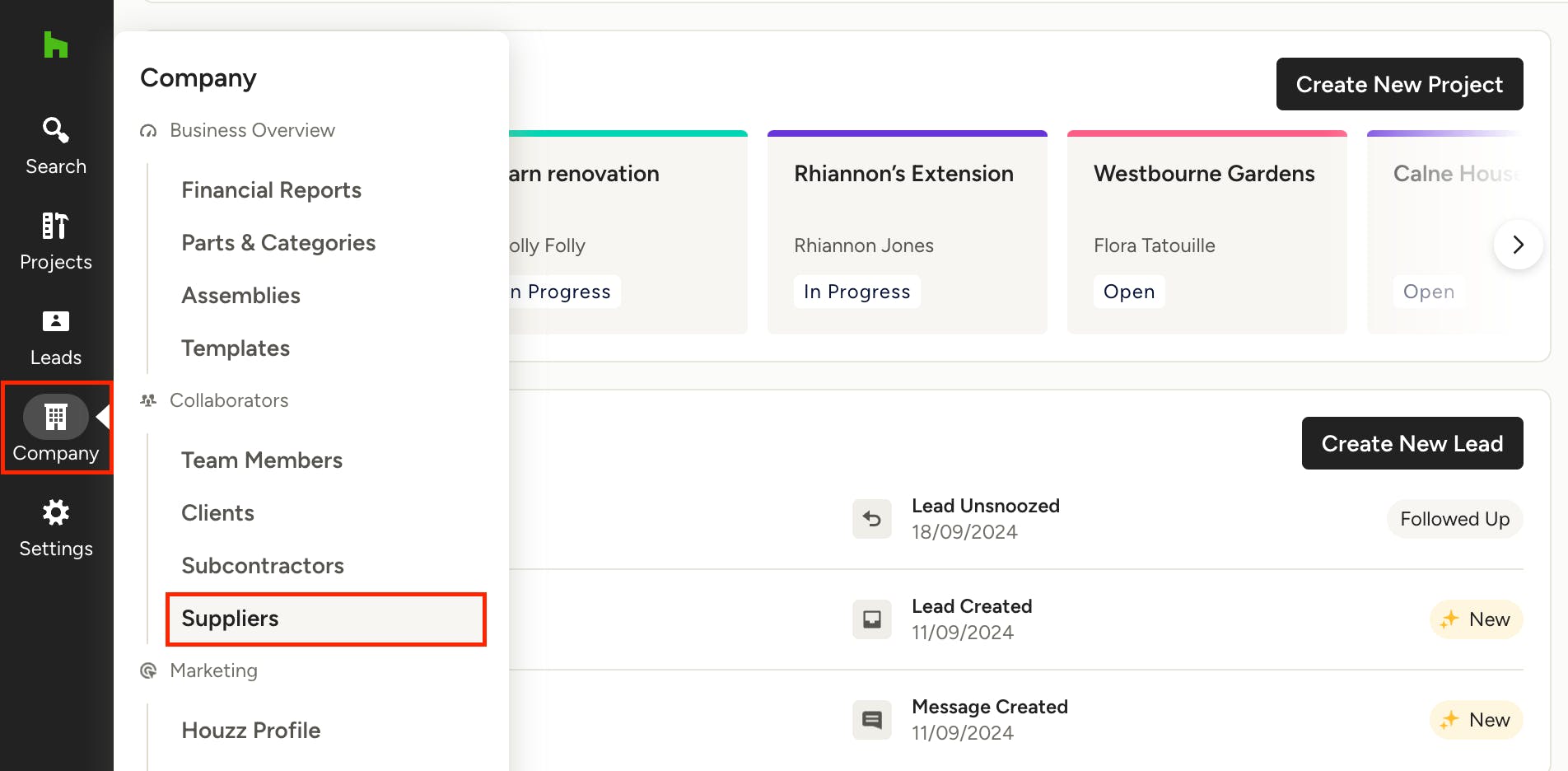
To import your suppliers, follow these steps:
1. In the Company menu, select the Suppliers section.

2. Under the Actions menu in the upper right, click "Import Supplier List".
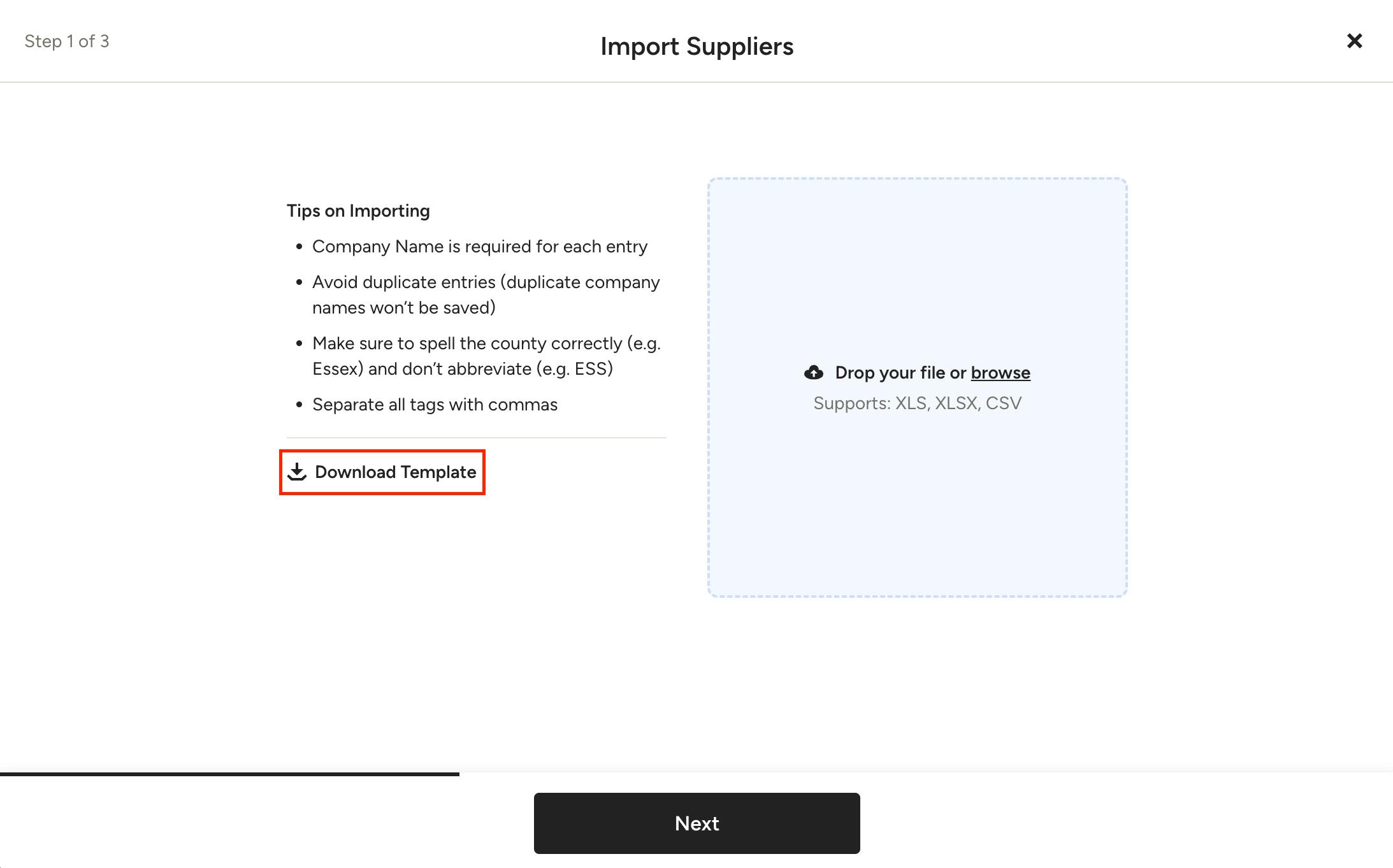
3. Click "Download Template" under Tips on Importing to download the CSV file template.

4. Open the downloaded template and fill in your suppliers, or copy the template formatting on your own file to match.
Follow these tips for a successful import:
- Company Name is required for each entry
- Avoid duplicate entries (duplicate company names won't be saved)
- Make sure to spell the county correctly (e.g. Essex) and don't abbreviate (e.g. ESS)
- Separate all tags with commas
5. Save the completed CSV or Excel file.
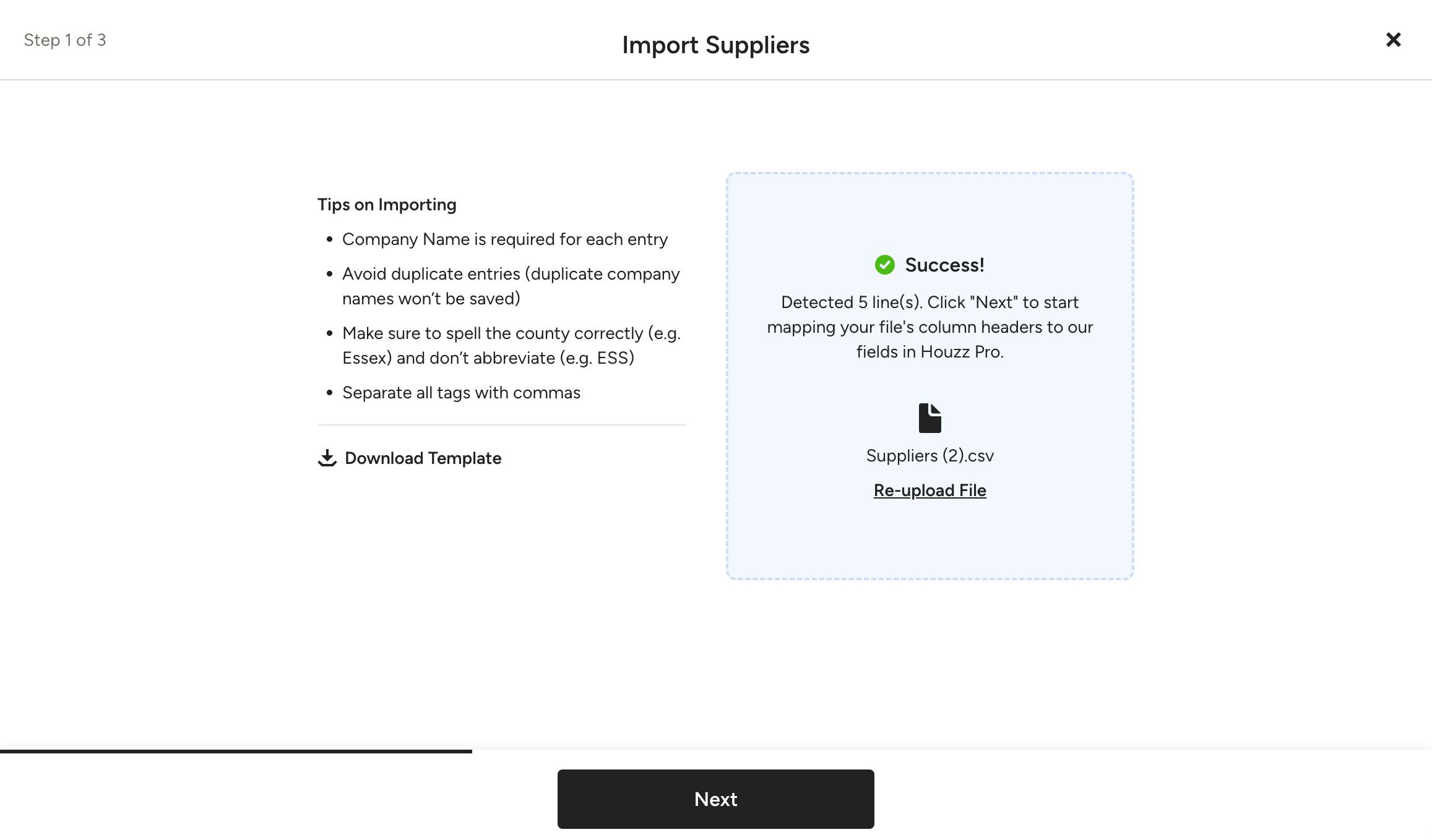
6. In the import screen, click "browse" and attach the file, or drag and drop the file into the box. If successful, you will see a message noting how many lines the system detected in your file. Click Next to start mapping your files columns to Houzz Pro fields.
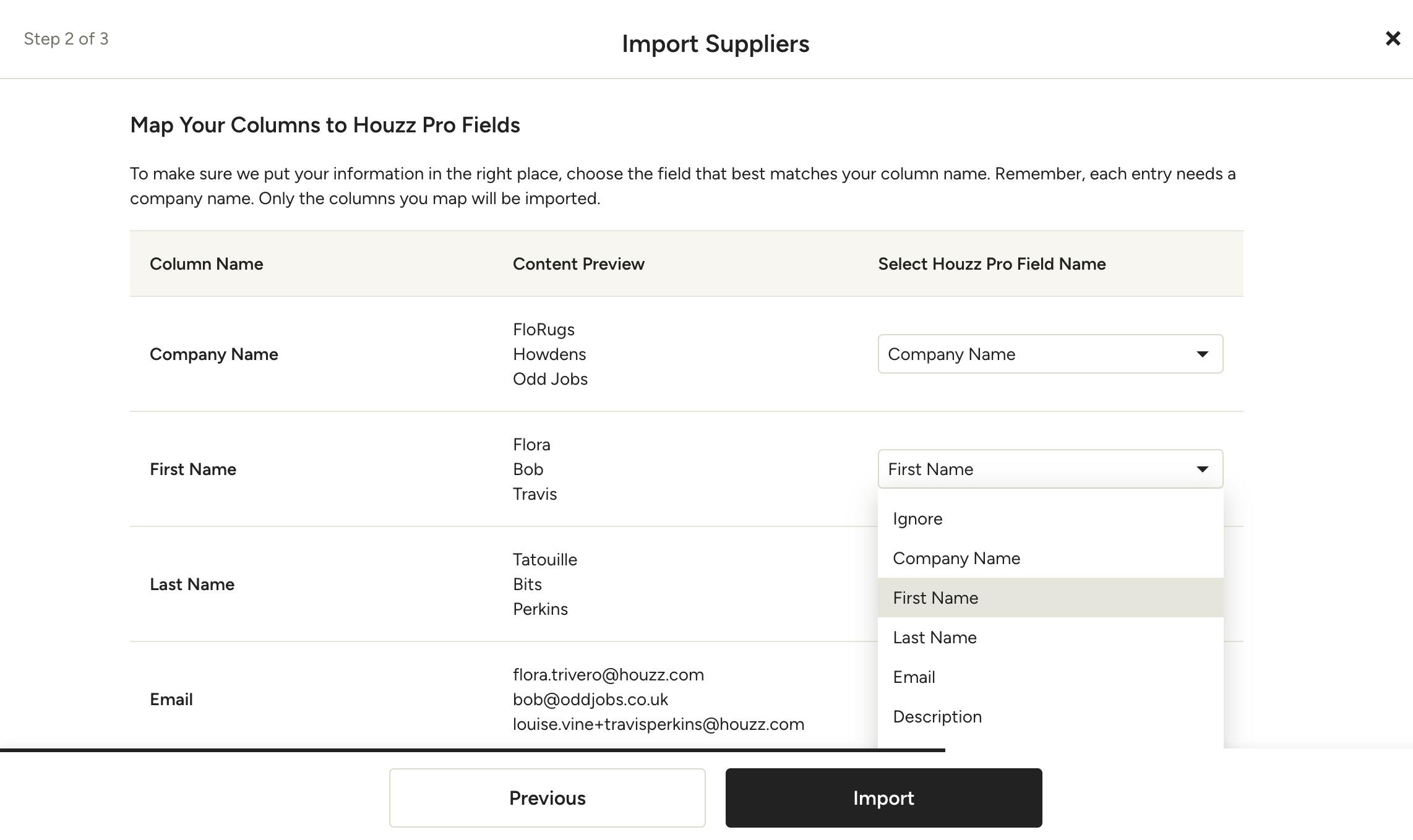
7. Choose the field that best matches your column name. Only the columns you map will be imported. Click Import when you are finished mapping.
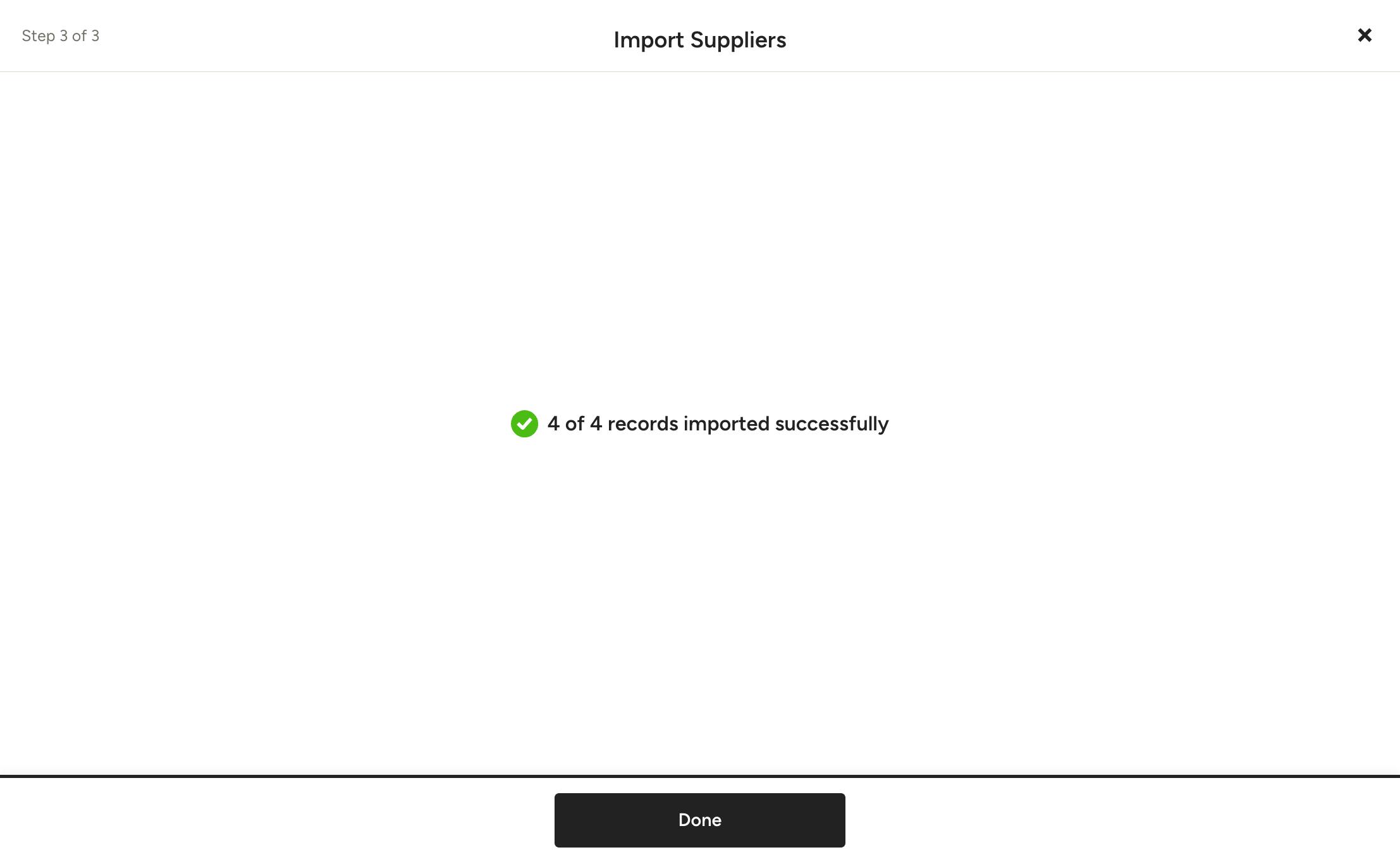
8. If your file was imported successfully, you will see a confirmation of how many records were successful. Click Done to return to your Suppliers page.
Note that if some entries fail to upload, the remaining entries that succeed will still be successfully uploaded. If there were any errors in the import, you will be notified of the exact errors so you can fix and re-upload them. See "Upload Errors and How to Fix Them" below for more details.
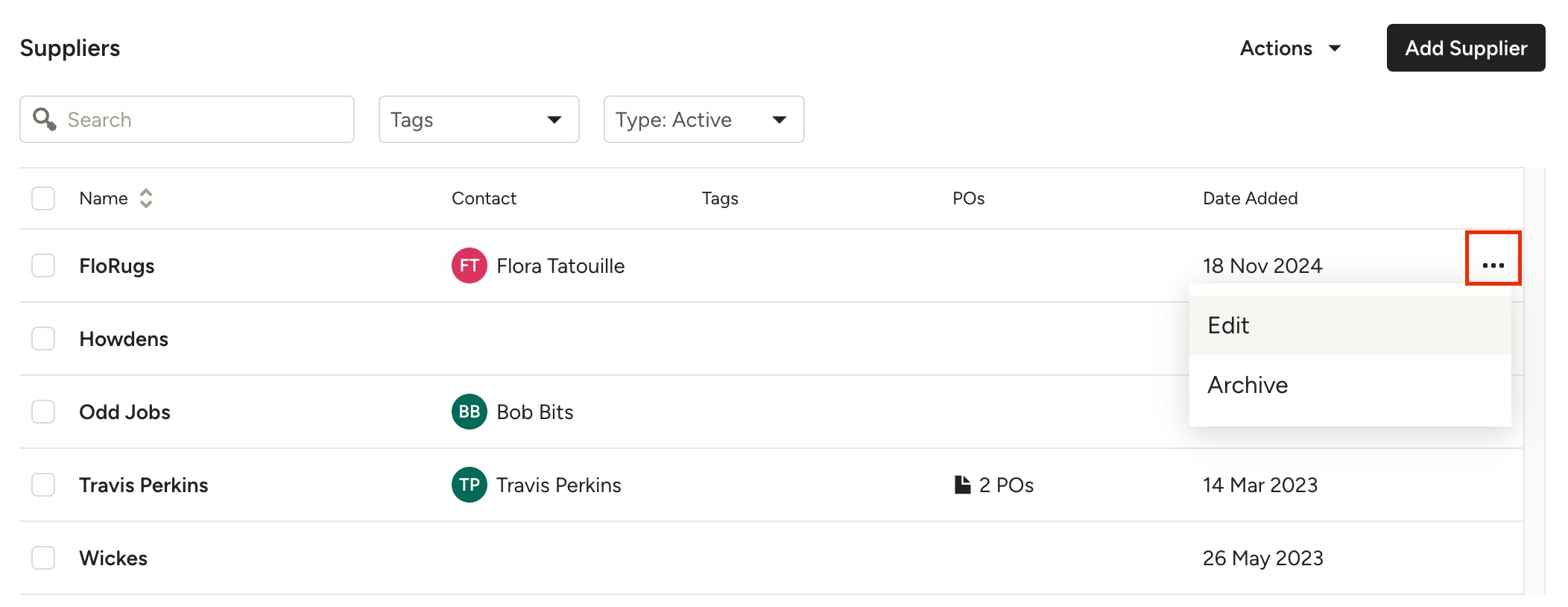
In the supplier list, you can see the main details for each supplier. To edit a supplier's details, click their name or use the three dots to the far right of their details to access more options.
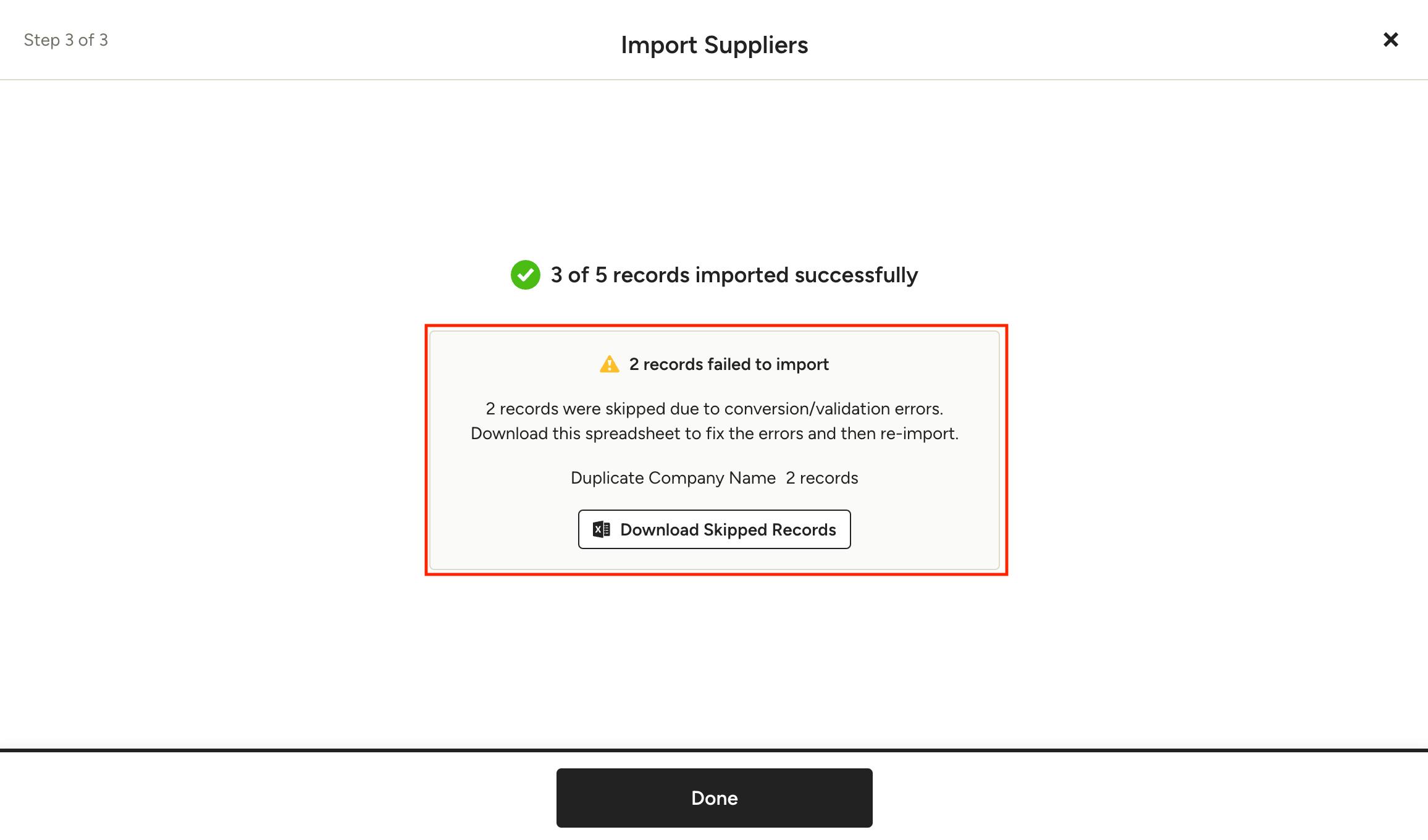
Upload Errors and How to Fix Them
If some entries within your file fail to upload, the remaining entries that succeed will still be successfully uploaded to your Suppliers list. In Step 3 of 3, if any errors occur, you will see how many entries/records failed and what the errors are. You then have the ability to download the skipped records, fix them and re-upload again.
Upload Errors:
- Empty Company Name: Make sure you include a company name for each supplier.
- Duplicate Company Name: This means there is an existing supplier with the same company name – we don't allow duplicates.

How to Export Suppliers from QuickBooks Online:
1. Sign in to your QuickBooks Online account.
2. In the left-hand side menu go to Expenses > Vendors.
3. Click the Export icon (the middle icon) on the right-hand side above the supplier list. This will download your QuickBooks Online supplier contacts as an Excel file.
4. Open the downloaded QuickBooks Online Excel file and adjust the columns to match the Houzz Pro template (found in step 3 above). This includes:
- Changing the column titles to match the Houzz Pro template categories
- Deleting the columns not listed in the Houzz Pro template
5. Download the adjusted QuickBooks Online Excel file as a CSV file.
6. Upload the file to the Houzz Pro supplier import (Step 6 in the section above).