How to Set Up Multi-Factor Authentication
Multi-Factor Authentication (MFA) adds an extra layer of security to your Houzz Pro account by requiring a verification code in addition to your password. MFA is optional – you can choose to enable it at any time.
Set Up MFA
When setting up MFA, you’ll first configure Email MFA using your account email address. After Email MFA is active, you can also add SMS (text message) MFA for additional protection. Here's how:
Enable Email Authentication
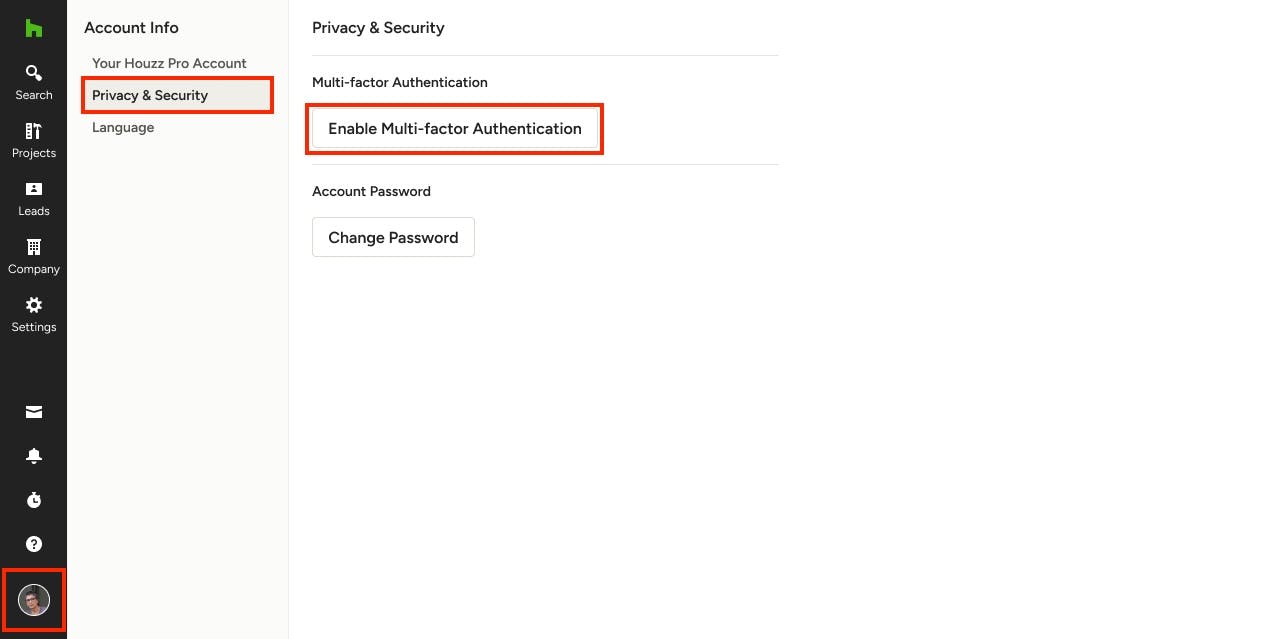
1) Click on your Profile icon at the bottom of the left navigation, then select Privacy & Security in the Account Info menu. On this page, click Enable Multi-factor Authentication.
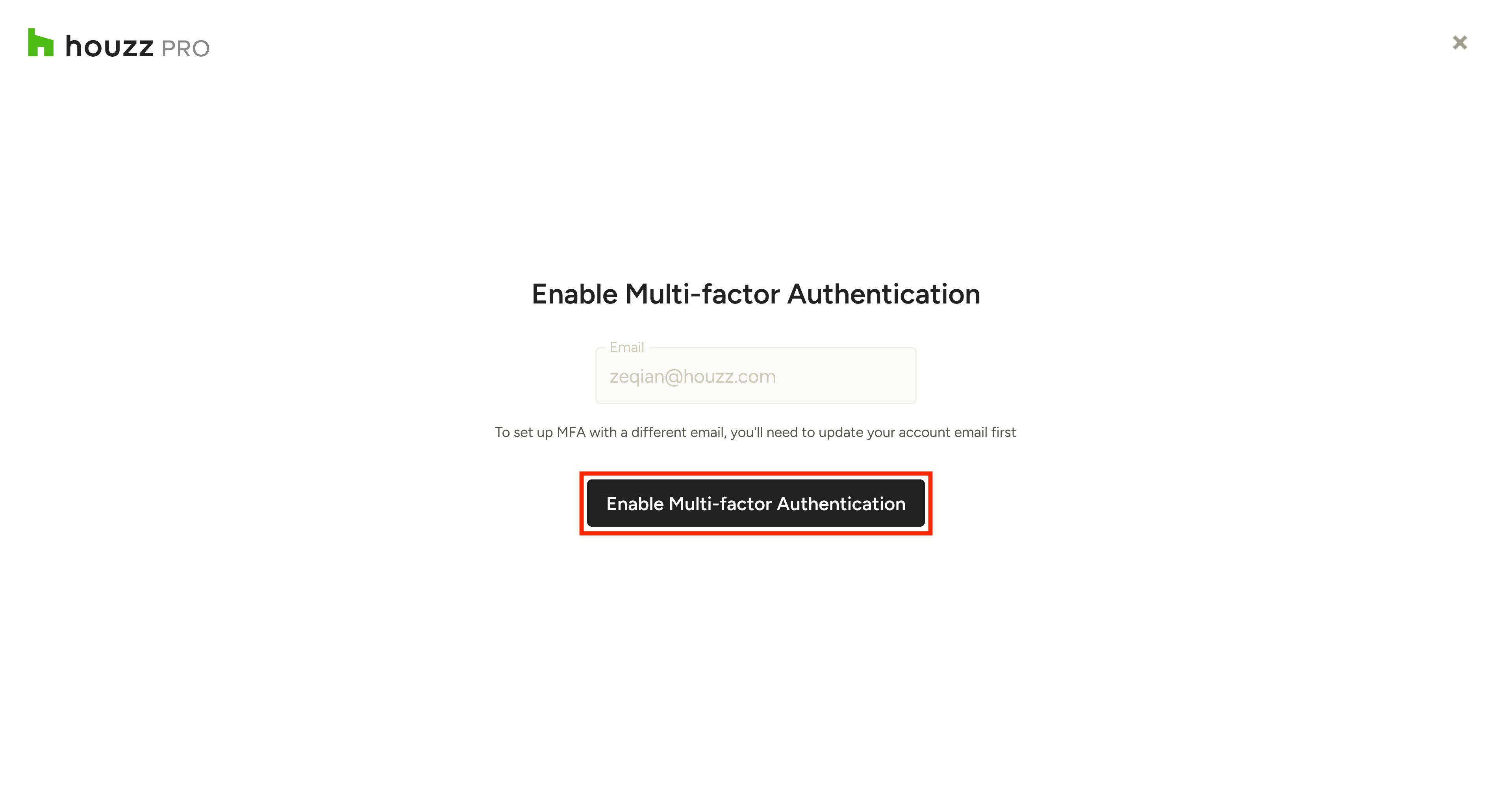
2) You will be directed to set up email verification first. The email will be pre-populated with your account's email address; if you would like to set up MFA with a different email, you will need to update your account email before proceeding. To continue with the populated email, click Enable Multi-factor Authentication.
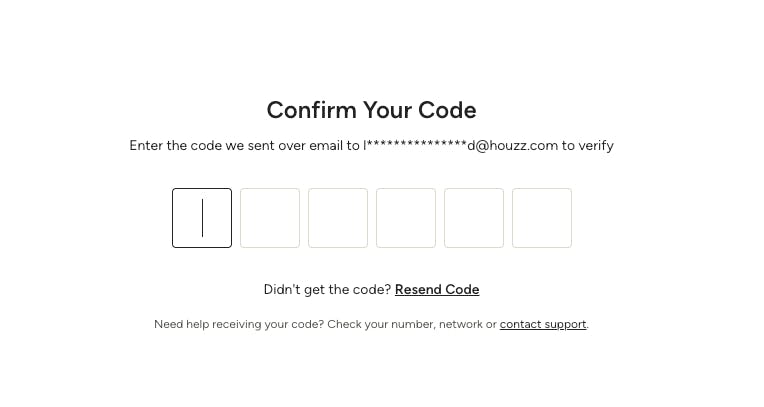
3) A verification code will then be sent to your account email. Enter the code to verify the account.
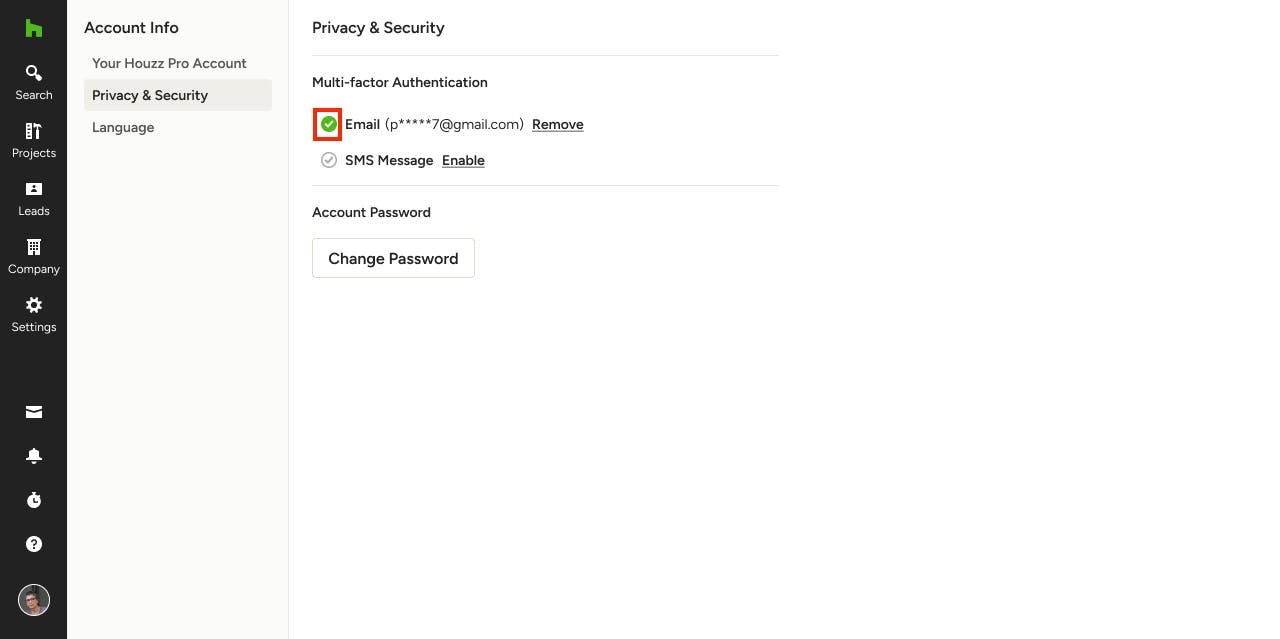
4) Once email is properly verified, you will land back on the Privacy & Security page, where you will see a confirmation modal that the authentication method was added, a checkmark denoting that the email authentication is enabled, as well as see the rest of the available verification methods that can be set up.
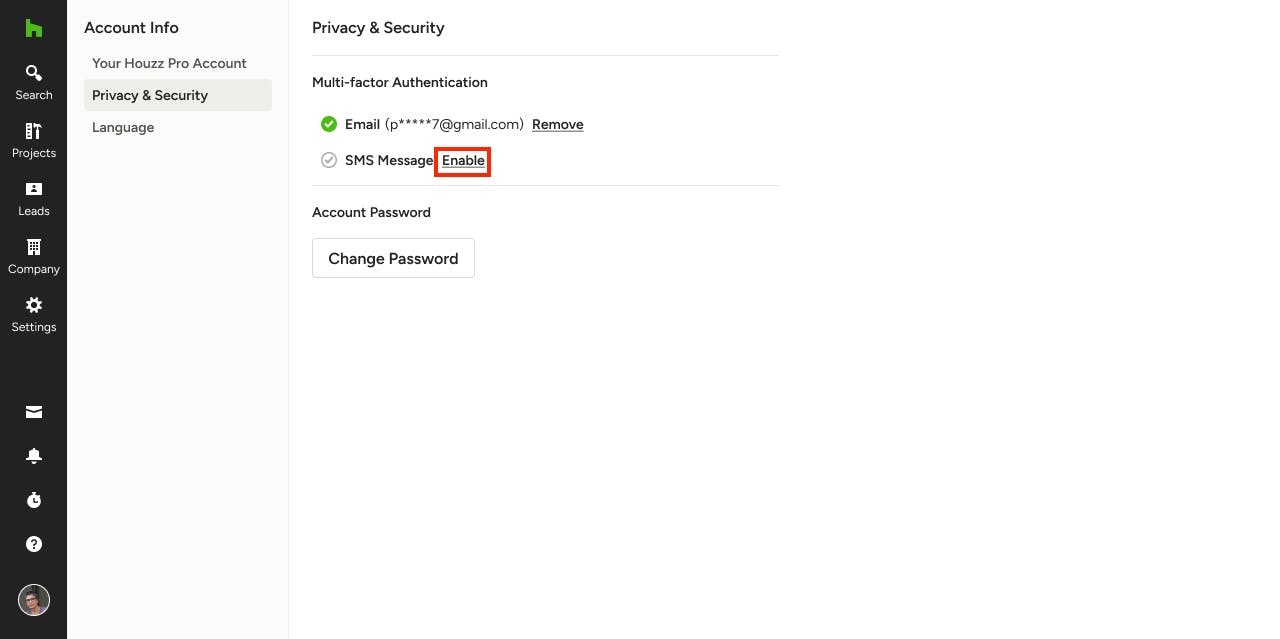
Enable SMS Authentication
1) To add SMS Message to your account's MFA, click Enable to the right of this method.
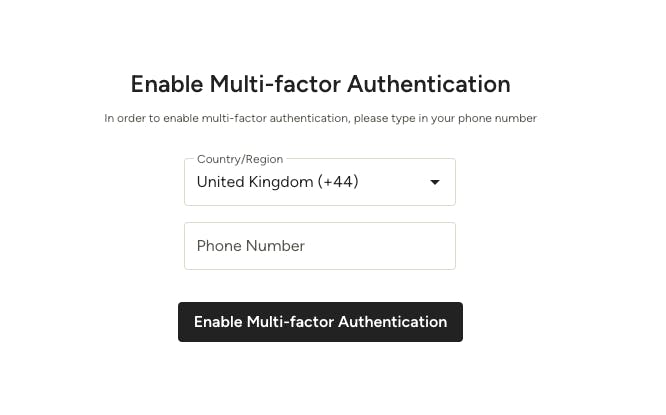
2) Select your Country/Region from the dropdown, then type in your phone number and click Enable Multi-factor Authentication.
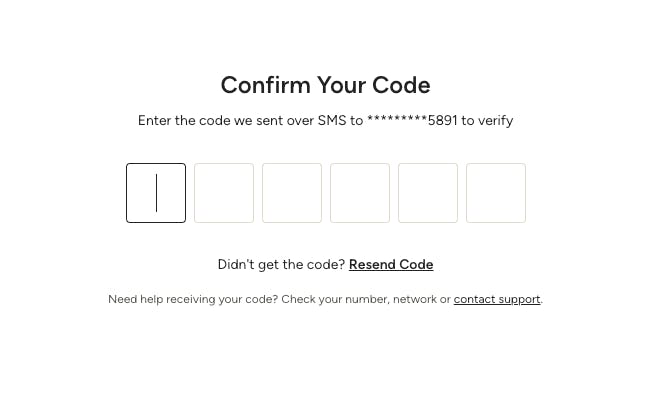
3) A verification code will then be sent to the phone number you entered. Enter the code to verify the account.
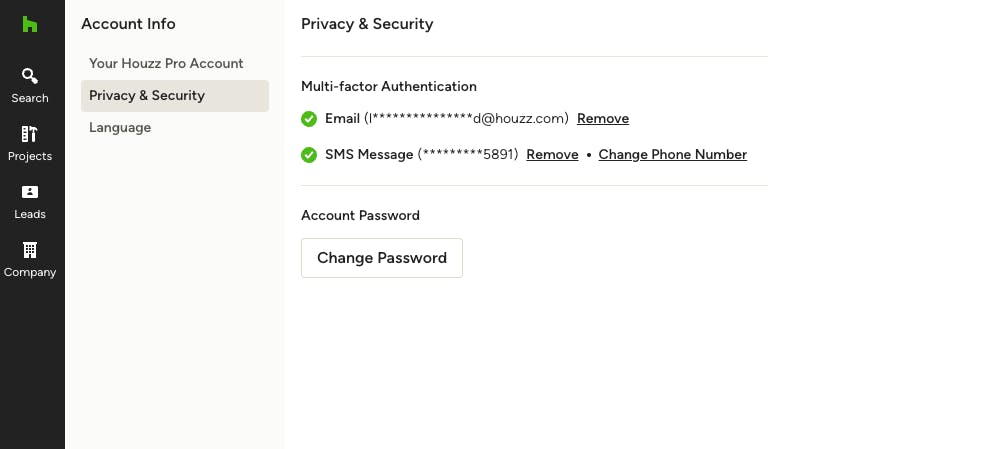
4) Once SMS is properly verified, you will land back on the Privacy & Security page, where you will see a confirmation modal that the authentication method was added, and a checkmark denoting that the SMS Message authentication is enabled.
Sign In with MFA
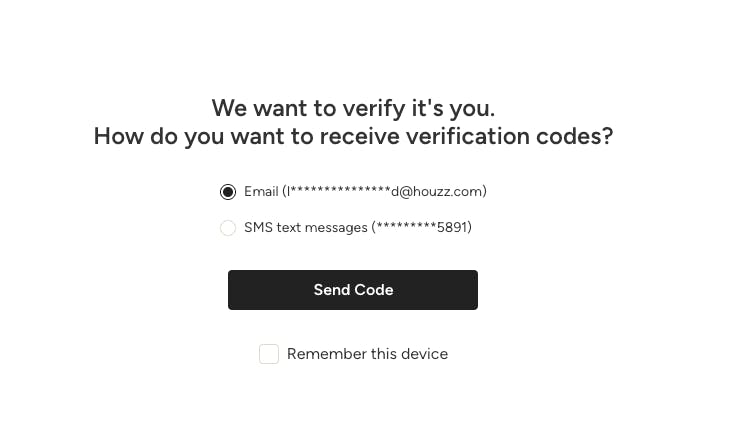
Once you have at least one method of MFA enabled on your Houzz Pro account, you will be required to verify that it's you, with a code sent to your email or phone, in order to sign in. After entering your email and password at sign in, you will be sent a verification code. If you have more than one MFA method enabled, you can choose where you would like the code sent (email or SMS), as shown in the image below.
Tip: If you are using a trusted device and want to stay signed in for 30 days, select Remember this Device. You won't be asked to verify with MFA on your device in those 30 days, unless you sign out of Houzz Pro.
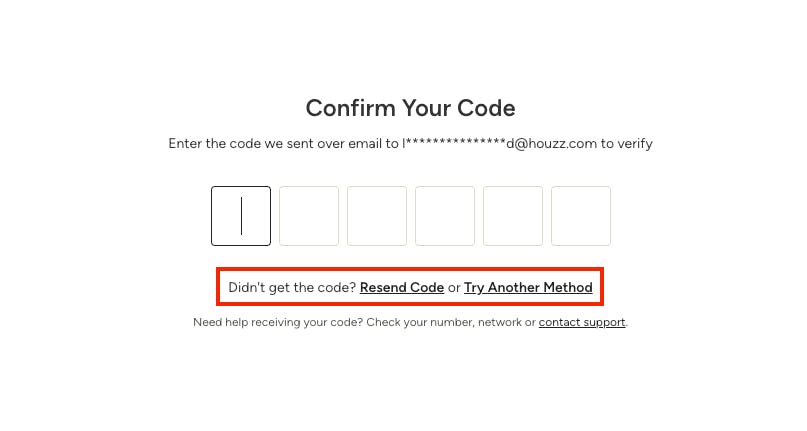
Once you receive your code, enter it to verify your sign in. If you didn't receive a code, or your previous code expired, you can click Resend Code for a new code. If you have multiple MFA methods enabled, you can also click Try Another Method to send a new code to either your email or SMS.
Once you are signed in, by default, your authenticated session remains active for 7 days. Selecting “Remember this device” during login or a session refresh extends the session to 30 days on said device.
Manage MFA
Change Phone Number
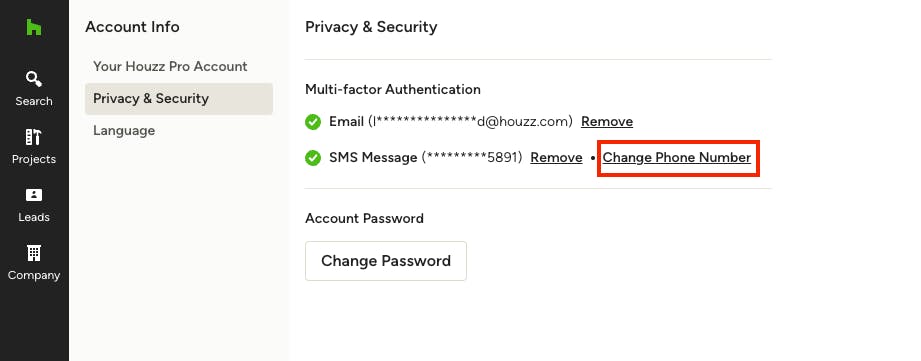
You can update your phone number for SMS authentication at any time. When doing so, you’ll be asked to first verify the change with a MFA code sent to your existing methods, for security reasons. Once verified, you can enter a new phone number and continue with the new MFA method set up.
Remove MFA Methods
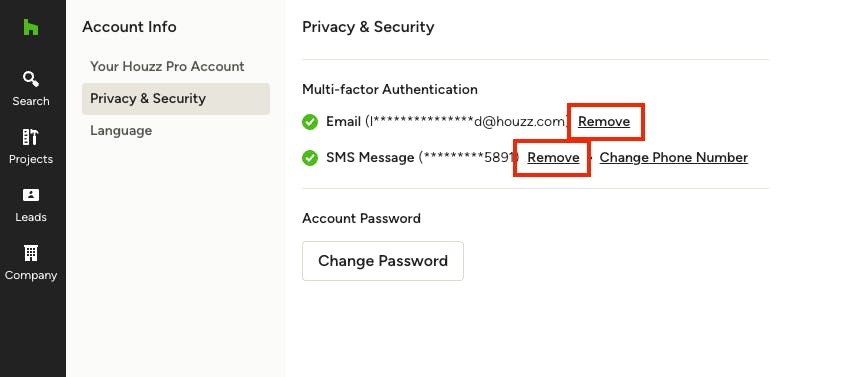
You can remove MFA methods (Email, SMS or both), but for security reasons, you’ll need to complete an MFA challenge with a code send to existing methods before doing so. To remove a method, click Remove next to the one you want to disable, them confirm the action in the modal that appears.
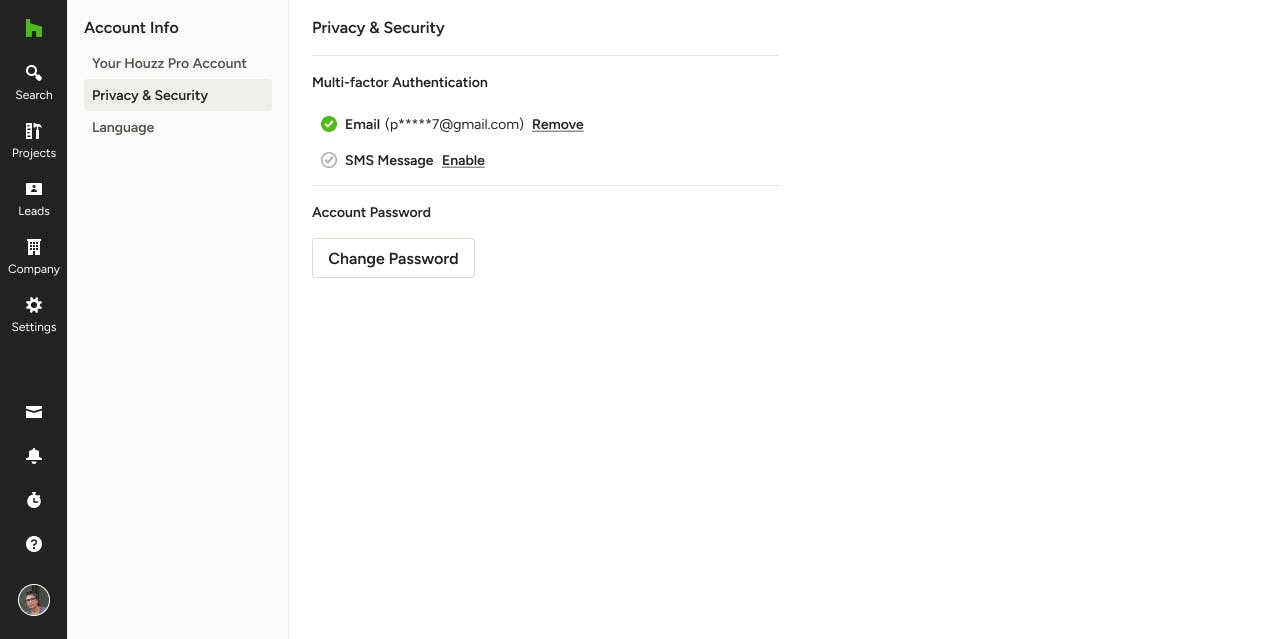
Once you verify that it's you with a code sent to an existing enabled method, the desired method will be removed and you will no longer see the green checkmark next to said method.
Lockouts & Failed Attempts
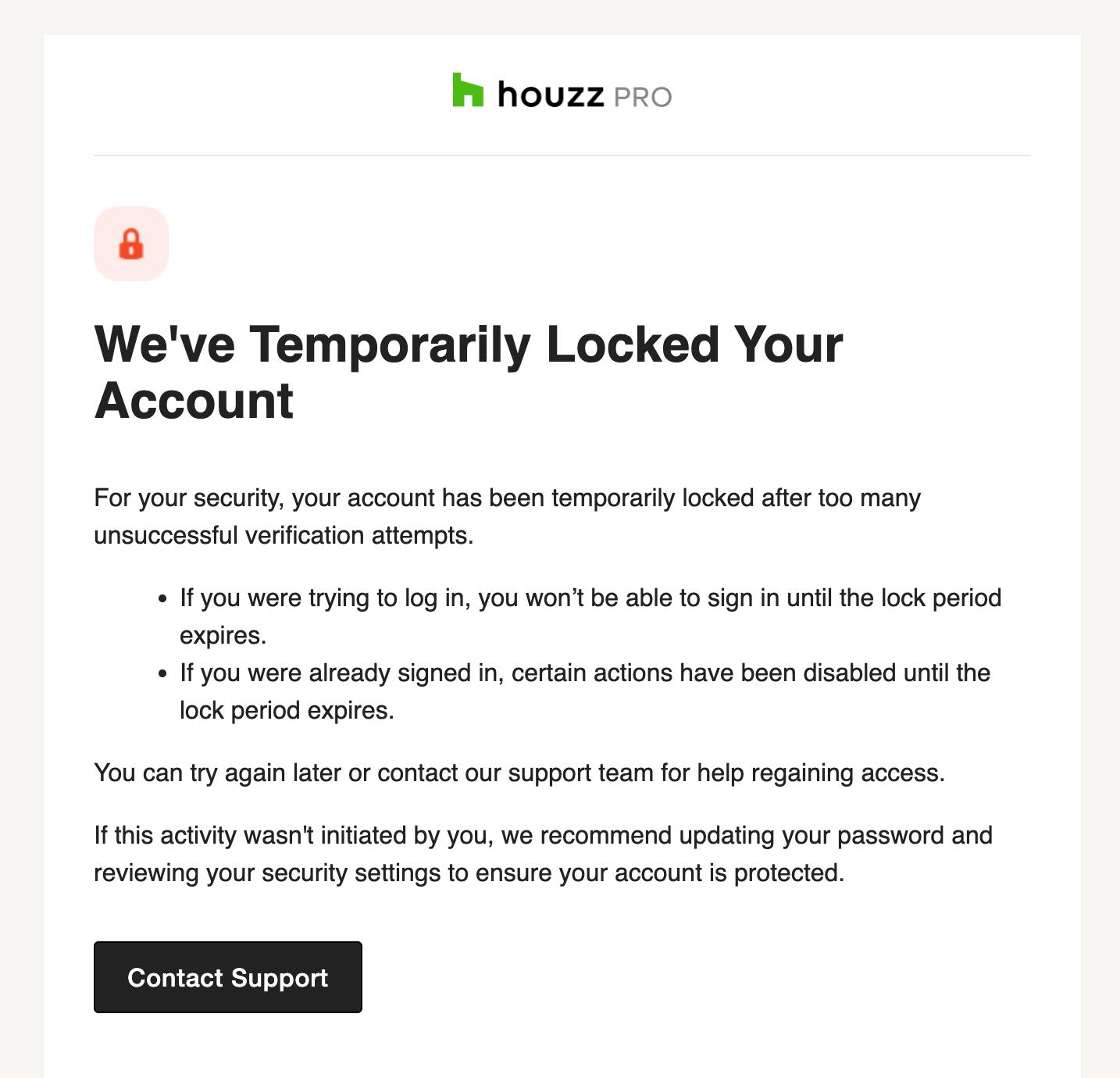
Entering the wrong verification code (either an expired or invalid code) too many times will lock your account temporarily. You’ll receive an email notification if your account becomes locked. Depending on the action you were taking when locked, you may be:
- Blocked from setting up MFA (but remain signed in).
- Blocked from completing a sensitive action, like changing your password or contact details (but remain signed in).
- Blocked from signing in for several hours if MFA fails during sign in.
If you are locked out of your account or blocked from an action, you can either try again later (with a new code) or contact support for assistance.