How to Track Payments with the Payouts Report
The Payouts Report on Houzz Pro gives you full visibility into the details and status of your online payments that will be deposited into your bank account, including multiple payments in one lump sum payout, partial instant payouts, failed payouts and more.
Access Payouts Report
You can access the payouts report multiple ways: From the Reports section, from a paid document, and from the Payments Report.
From Reports
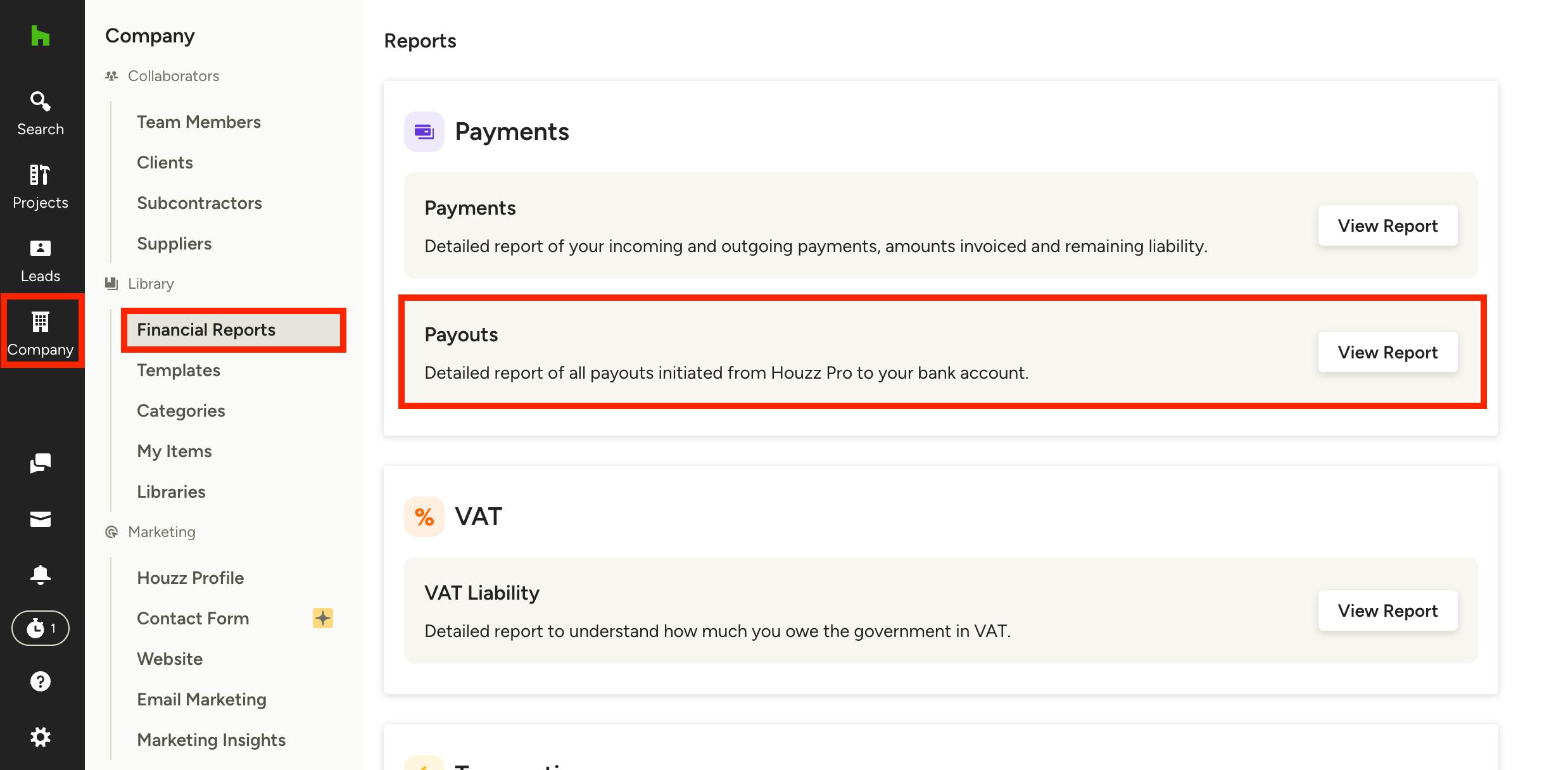
Select the Company icon in the left navigation, then select Financial Reports from the left menu. Click View Report on Payouts in the Payments section.
From a Document
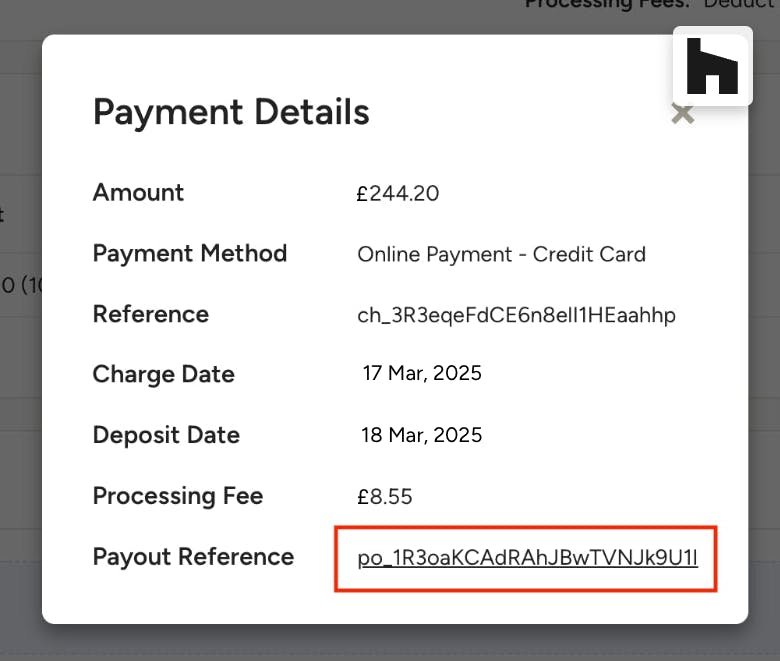
To access the payouts report directly from a document that contains an online payment, click on a payment to see the payment details, then click the Payout Reference ID to be taken directly to the payout details within the payouts report.

From Payments Report
To see payout details for a specific online payment from the Payments Report, click the ID found in the Transfer ID column. This will take you directly to the payout details for that payment in the payouts report.
Payouts Report Breakdown
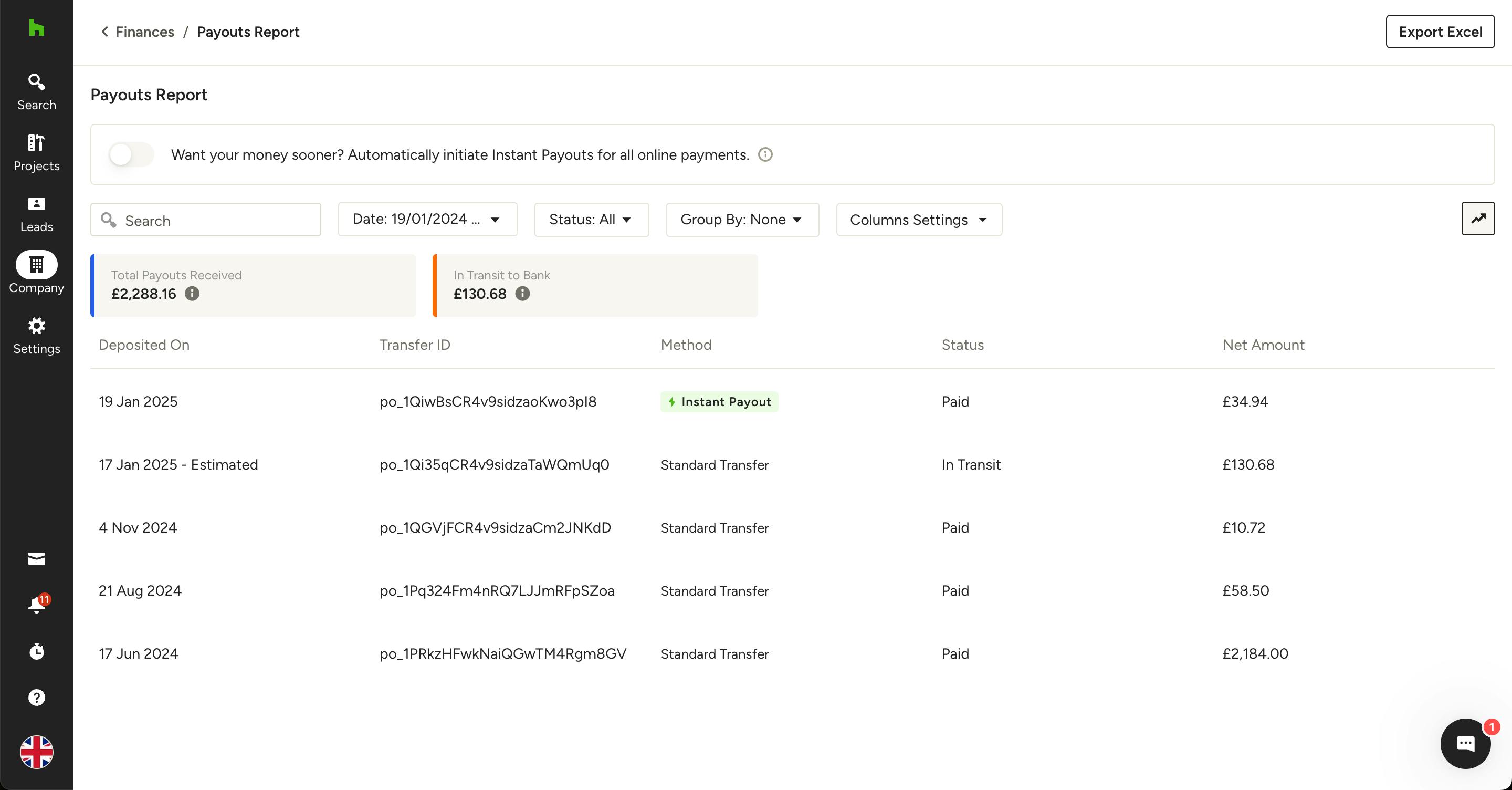
At the top of the payouts report you will see amounts for Total Payouts Received and In Transit to Bank. These amounts will reflect the payouts received and in transit for the dates, status and method(s) selected using the filters at the top of the page – update the filters to quickly find the payouts you want more details on.
Within the table of payouts you will see Deposit Date, Transfer ID, Method (Standard or Instant), Payout Status and Net Amount.
Note for payouts with "In Transit" status, you will see an estimated date in the Deposited On column, giving you an idea of when you'll see the money in your account.
There is also the option to turn on the toggle for Instant Payouts for your account, if not already enabled. To learn more about Instant Payouts, read Instant Payouts with Online Payments.
View Payout Details
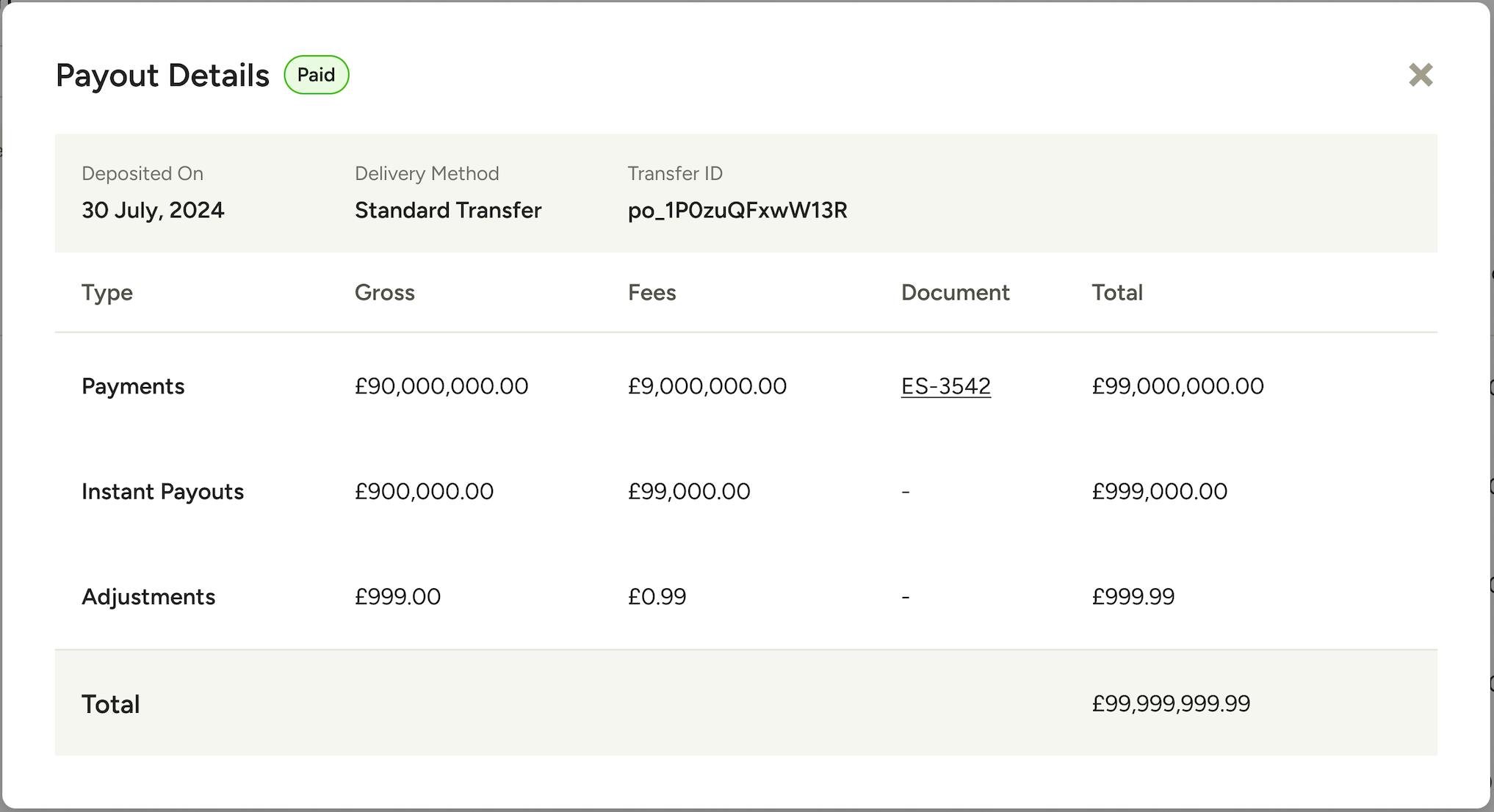
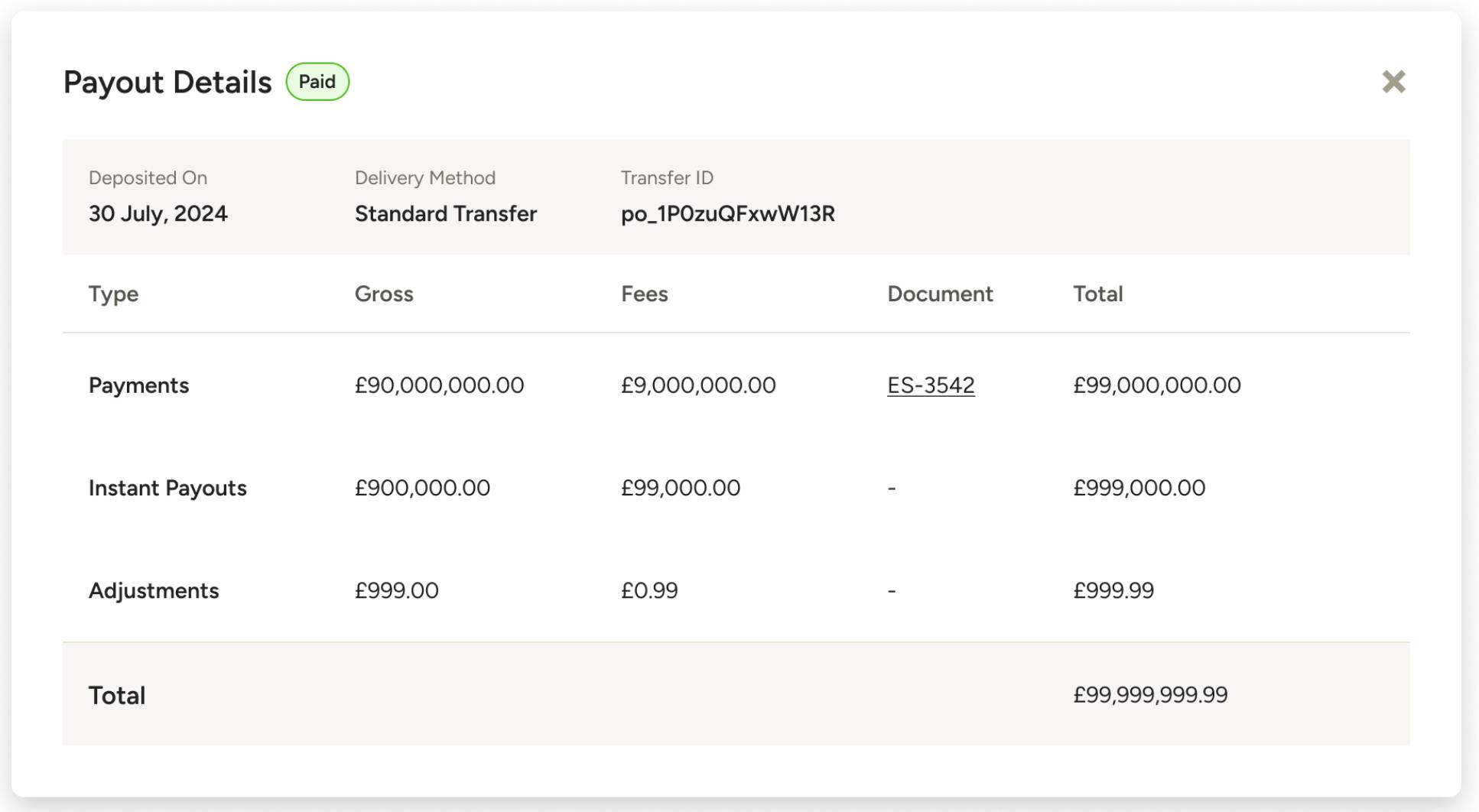
By clicking on a payout row a detailed view will be displayed, allowing you to see the breakdown of payments included in the payout, along with any associated documents and fees, and any adjustments done (e.g. refunds).
Transaction Types:
- Payment – A charge that has been paid out.
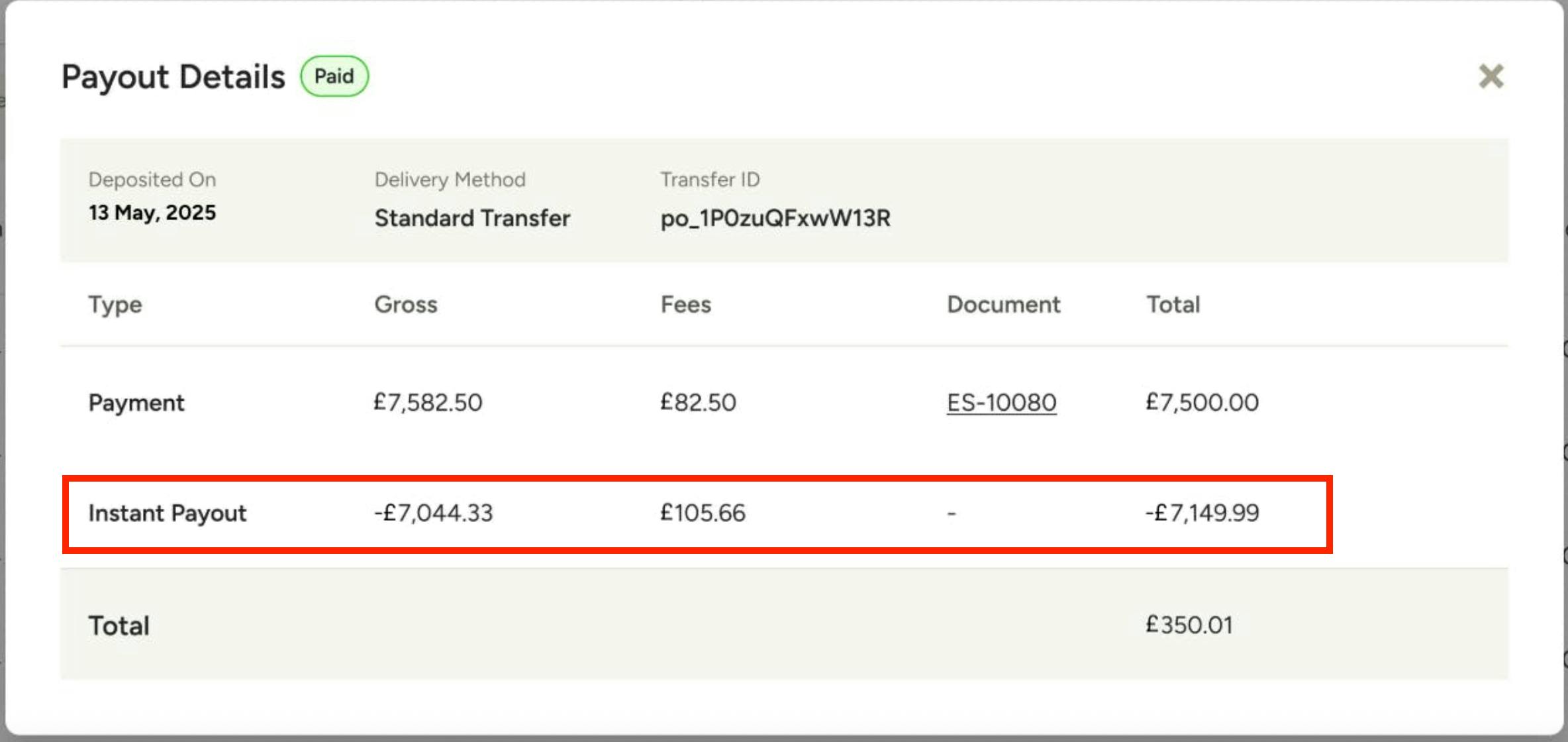
- Instant Payout – Instant payout appears with a negative amount on its next Standard transfer. See FAQs for more details.
- Refund – A payment that was refunded, showing as a negative amount.
- Processing Fee Refund – When a payment is refunded, the processing fee is returned to the pro's balance. This will be a positive amount.
- Payout Reversal – If a payout fails, Stripe will create a new payout attempt. This will be marked as "Payout Reversal", indicating it's a retry of a previously failed payout.
Payout Statuses:
- In Transit – The payout has been created and is on its way to the pro's bank account.
- Paid – The payout has been successfully paid.
- Failed – The payout failed, with the failure reason provided.
- Cancelled – A rare case where the payout is cancelled before being paid.
View Payment Details
To see payment details for a specific online payment directly from the Payouts Report, click a payout to open the details screen, then click Payment in the Type column on the row you want more information for. This will take you directly to the details for that payment in the payments report.
Instant Payout Details
You may notice that some Instant Payouts don't have an associated document number in the document column on the details screen – this is expected. Instant Payouts are not associated with any specific payments or documents. They are manual payouts, where you chose to have money advanced to you and transferred to your bank.
The only case where you can see document details for Instant Payouts is when you opt in to automatically initiate Instant Payouts, meaning every payment is instantly transferred.
Download the Payouts Report
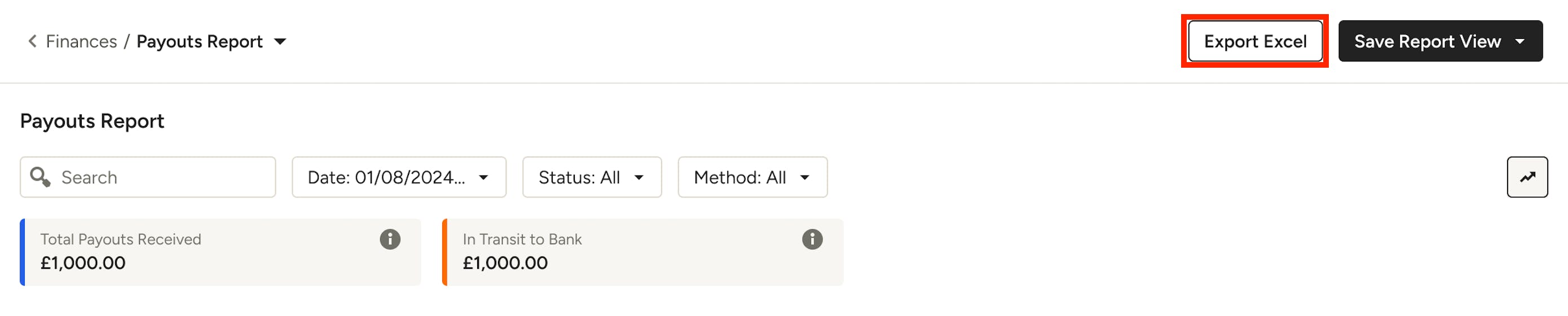
To download the payouts report in Excel format, click "Export Excel" in the top right of the page.
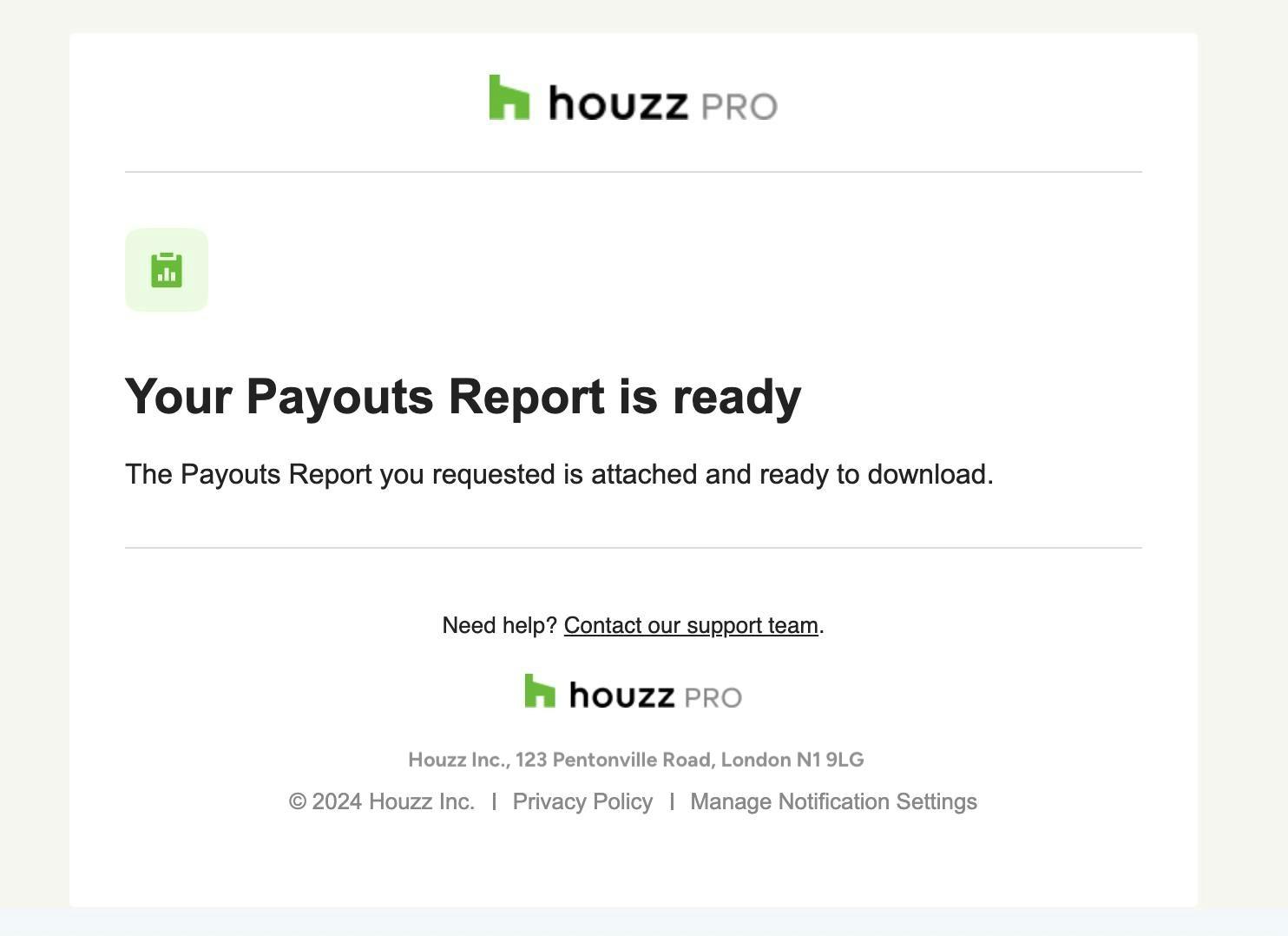
The payouts report will be emailed to you.
Frequently Asked Questions
1) What's the difference between the Payments Report and the Payouts Report?
The Payments Report allows you to keep track of all the individual payments coming in. You will see the client's charged date, invoiced amount, payment method, liabilities and more. The Payments Report data is based on your Online Payments and manually logged payments.
The Payouts Report allows you to keep track of the deposits that reach (or failed to reach) your connected bank account. It consolidates multiple payments, refunds, and any instant payouts into a single view.
2) Why do my instant payouts show as negative amounts in the standard transfer details?
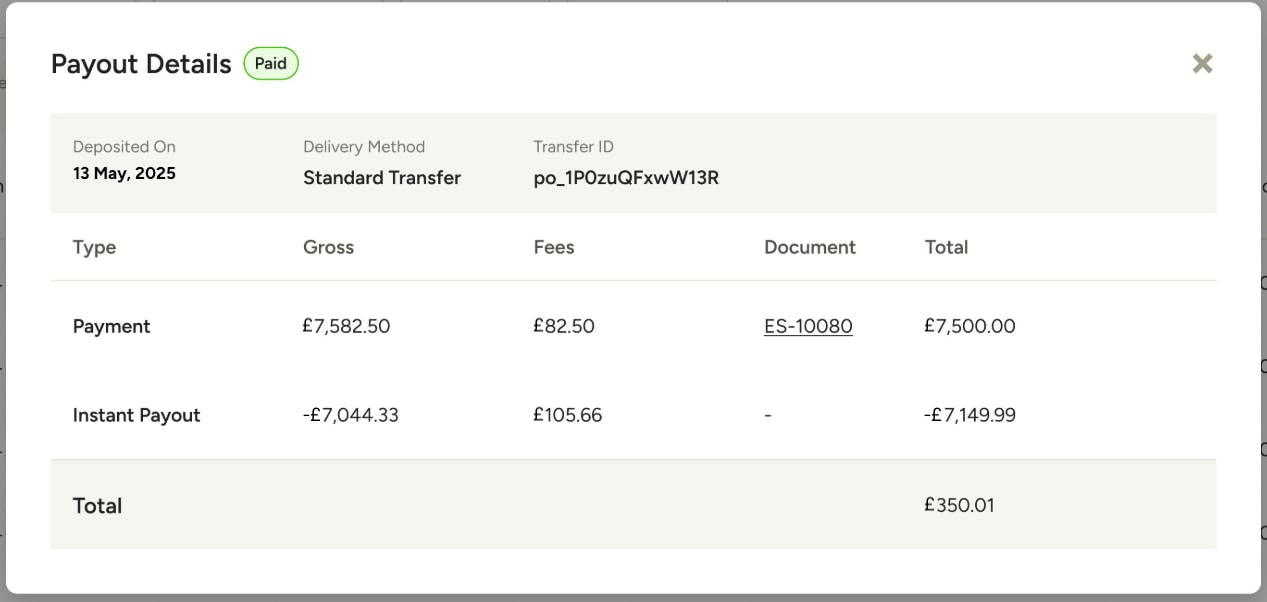
Instant Payouts use Stripe’s advanced funding mechanism for your online payment(s), meaning that we advance you the funds from a client’s payment so you receive them right away and can get to work. These immediate transfers can include either the full or a partial amount of the payment, depending on the option you select. In the standard transfer details following an Instant Payout, the Instant Payout amount appears as a negative value, indicating that it has already been paid out from the total payment amount. If you selected a partial Instant Payout, the remaining balance will be deposited through a standard transfer. Let’s take a look at an example:
In the image below, you see the payout details for a standard transfer that was deposited into the pro’s bank account. The first line shows a client payment of £7,582.50 (in this case, the client paid the processing fee of £82.50, so the pro receives the full £7,500 payment). The next line shows an Instant Payout of £7,044.33 for a partial amount of the client payment that the pro initiated and already received, plus the associated fee of £105.66, resulting in a total of -£7,149.99. This Instant Payout and fee are deducted from the top client payment line for a total remaining payout of $350.01.