How to Use Memo Templates on Your Documents
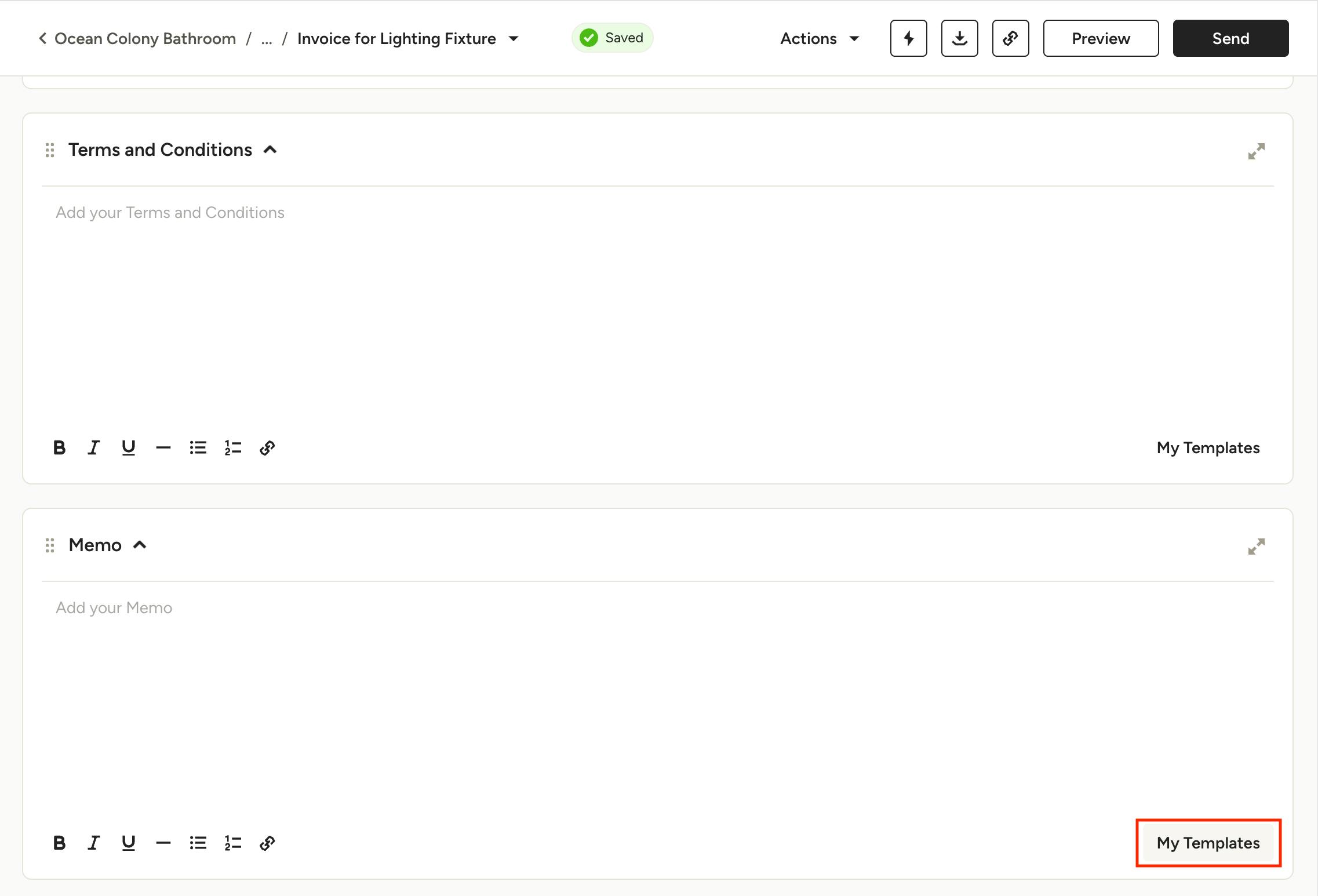
The Memo section of your documents is a place for you to add any notes for your client, which is in addition to the Terms and Conditions section. Save time and streamline your process by creating Memo templates that you can save and use on all future projects.
Access Your Memo Templates
To access your memo templates, open a document that is still in the draft stage and go down to the Memo section. Then click the My Templates button in the lower right corner of that section.
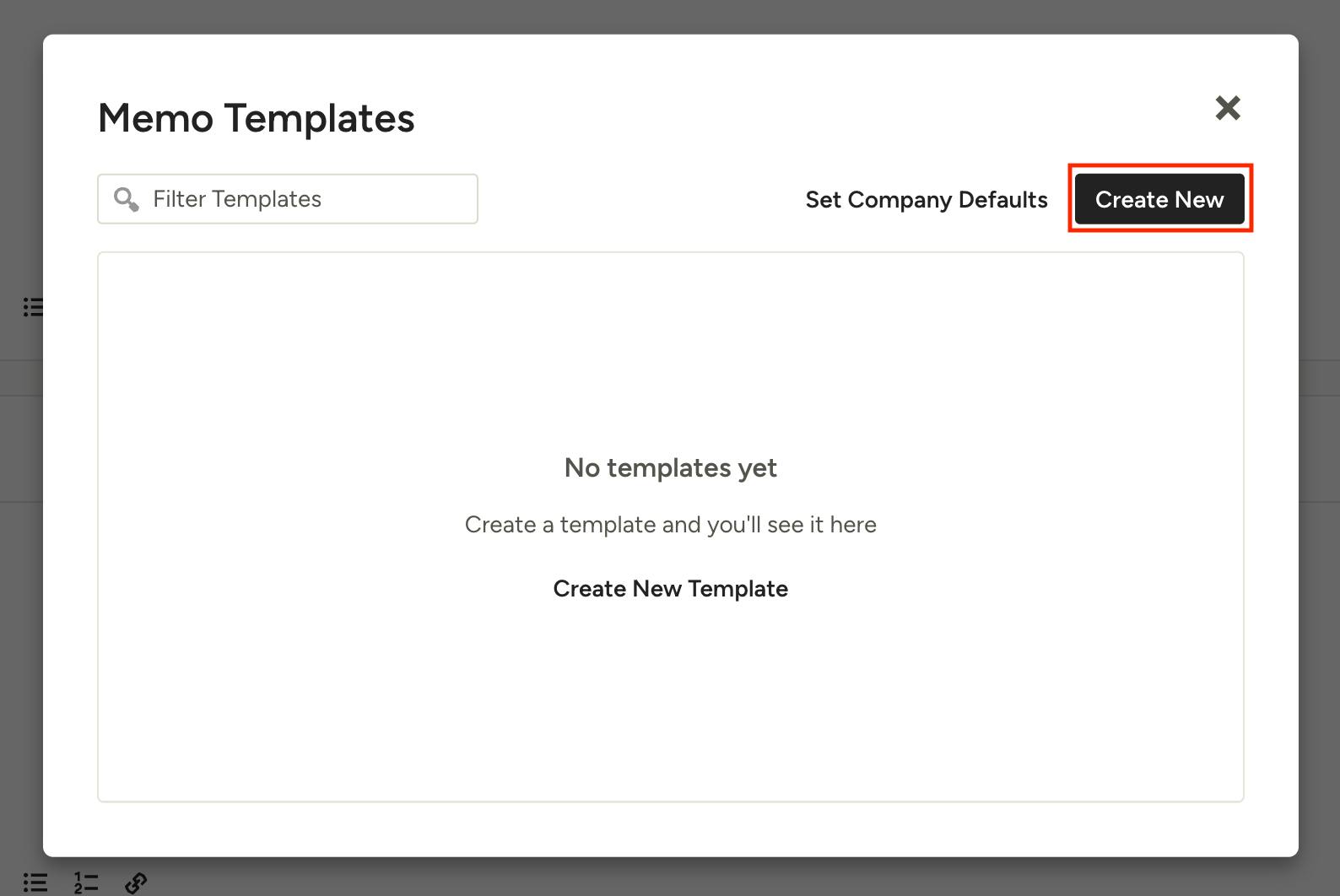
This will open the Memo Templates screen where you can create, search, edit, and delete memos. Here you can also set memos as the project or company defaults.
Create a New Memo Template
To create a memo, click the Create New button in the upper right or the Create New Template button for your first memo. Then just type in a memo title and the template content.
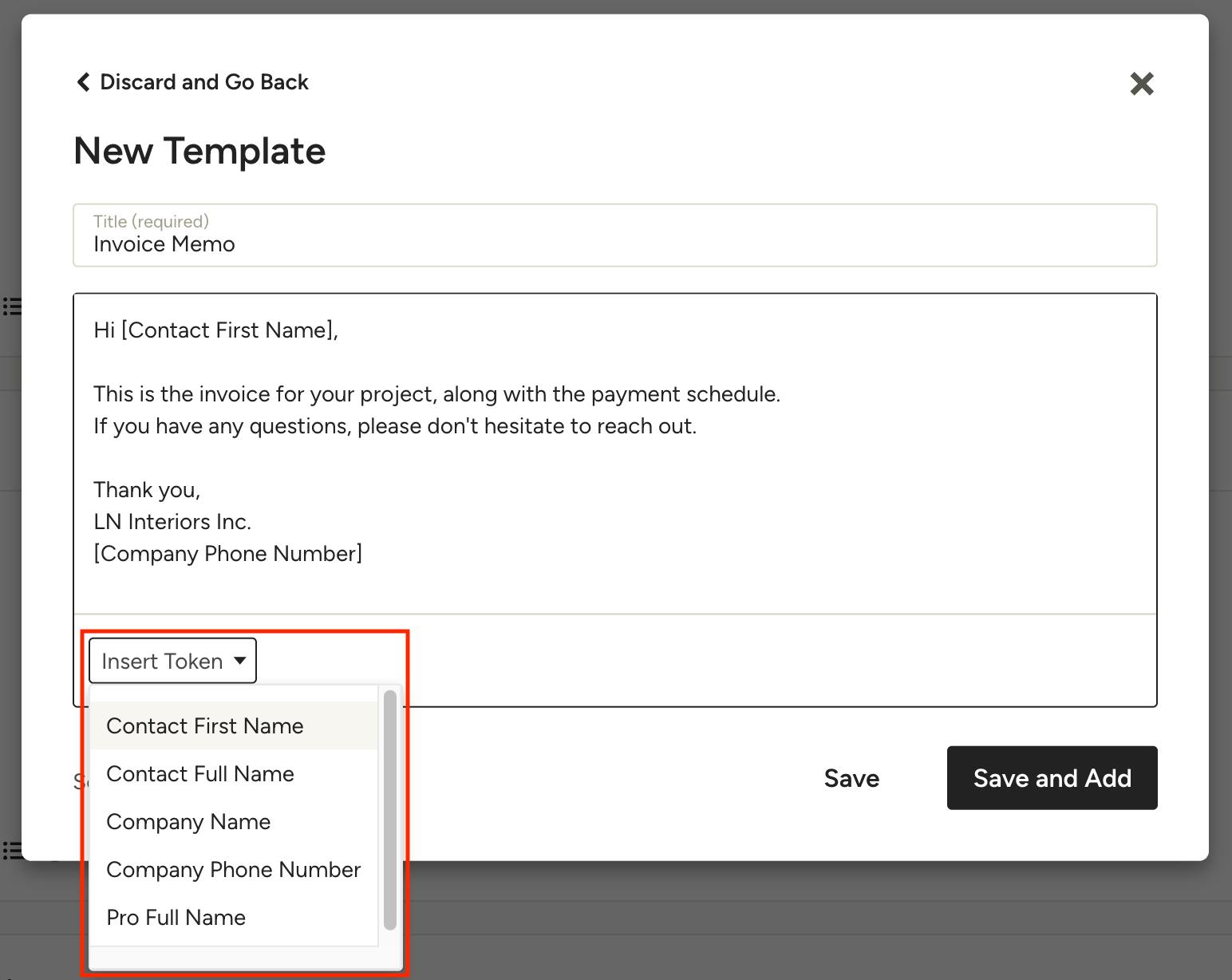
In the template content you can add in a token, meaning the automatic generation of items such as your client's name, your company name, or others. For example, "Hi, [Contact First Name]," as shown in text in the picture below. This is a great way to add a personal touch to your memos without having to type in names each time.
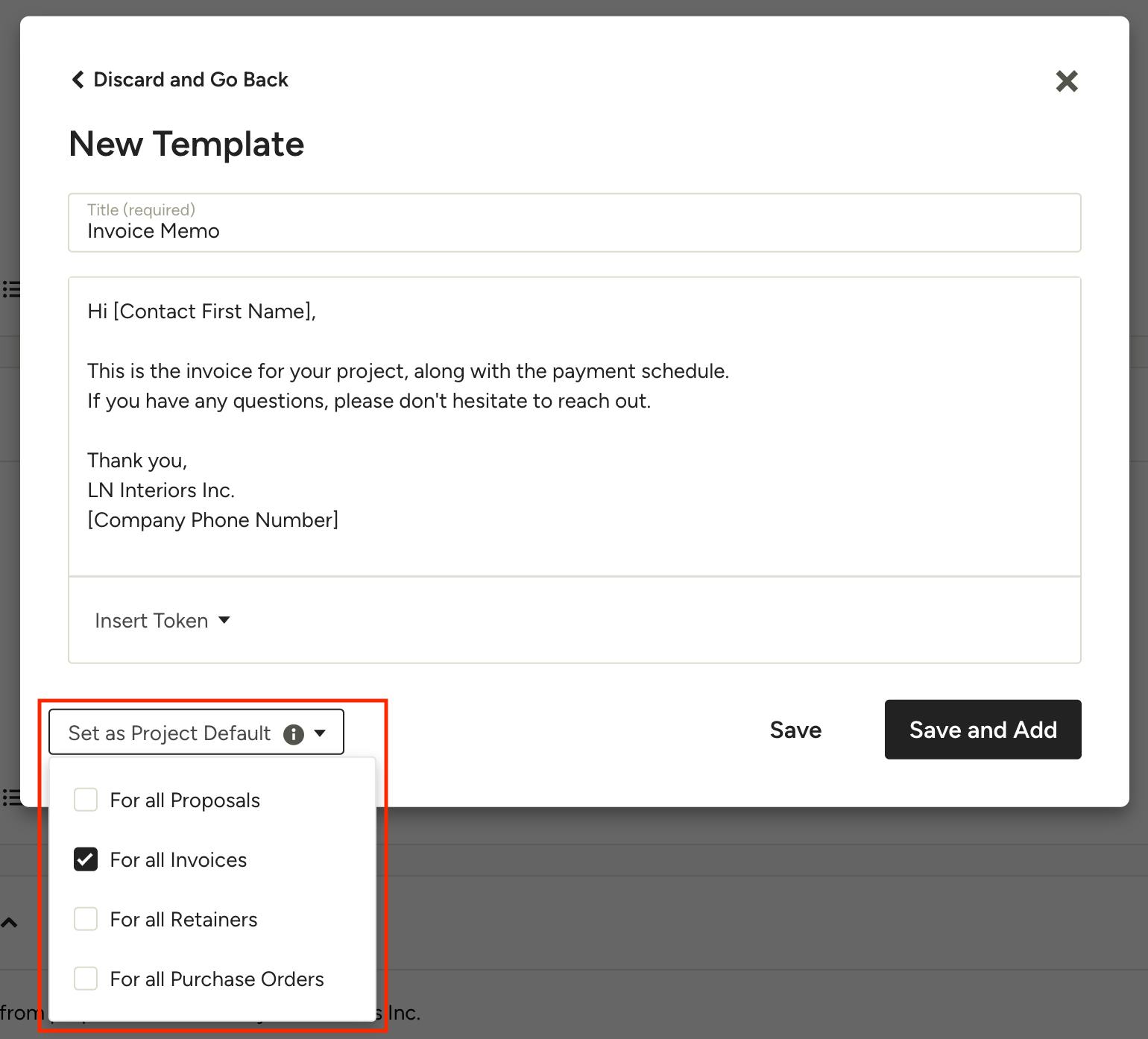
You also have the ability to set a memo as the default template for the project and choose which documents (estimates, proposals, invoices, retainers or purchase orders) it applies to. Setting a template as the project default will not override existing documents' memos.
When you're finished, click the Save button to save this memo as one of your templates for future use, or click the Save and Add button to save this memo as one of your templates and apply it to the current document.
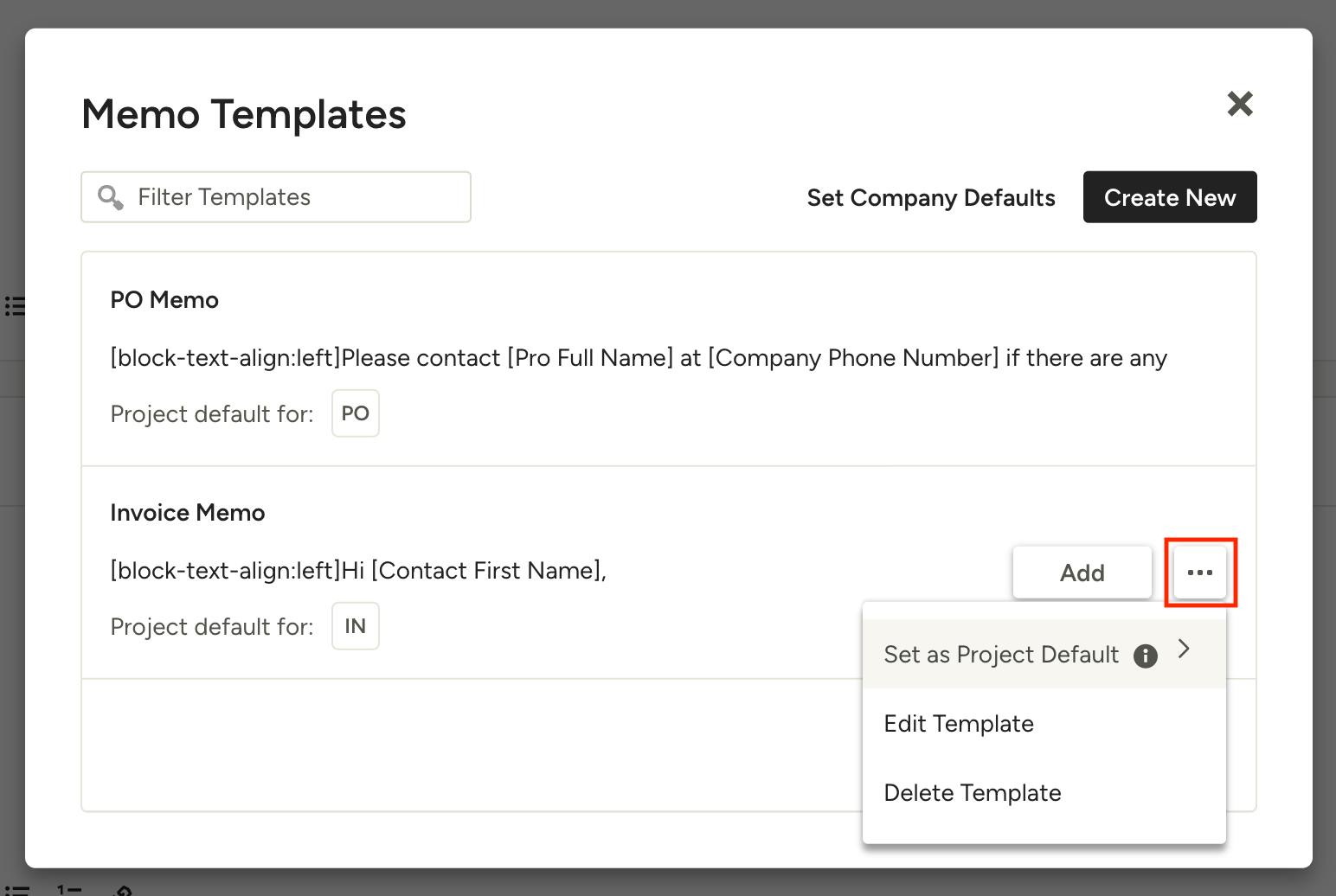
Set as the Project Default, Edit, or Delete a Memo
You can always set a memo as the project default, edit it, or delete it later on by opening the Memo Templates screen and clicking the three horizontal dots that appear on the right when you hover over the memo.
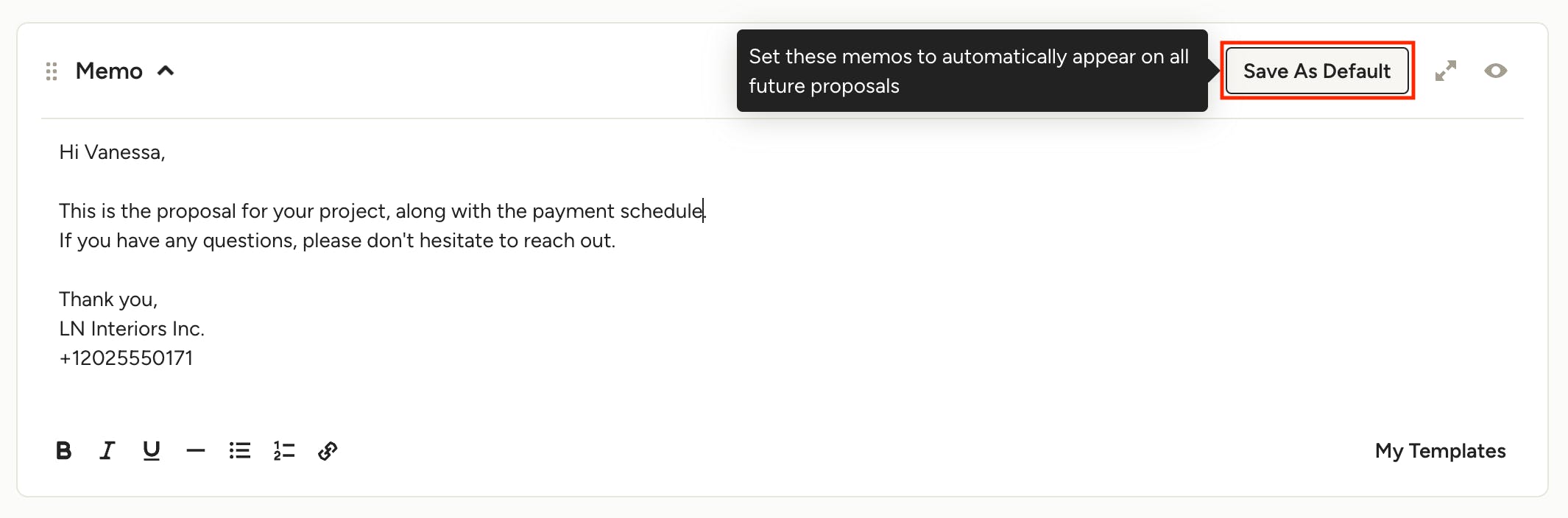
Set Company Default Templates
To set a company default template, which will act as the default memo template across all projects, new and existing, admin users can click Save as Default at the top of the Memo section once you have a memo typed out.
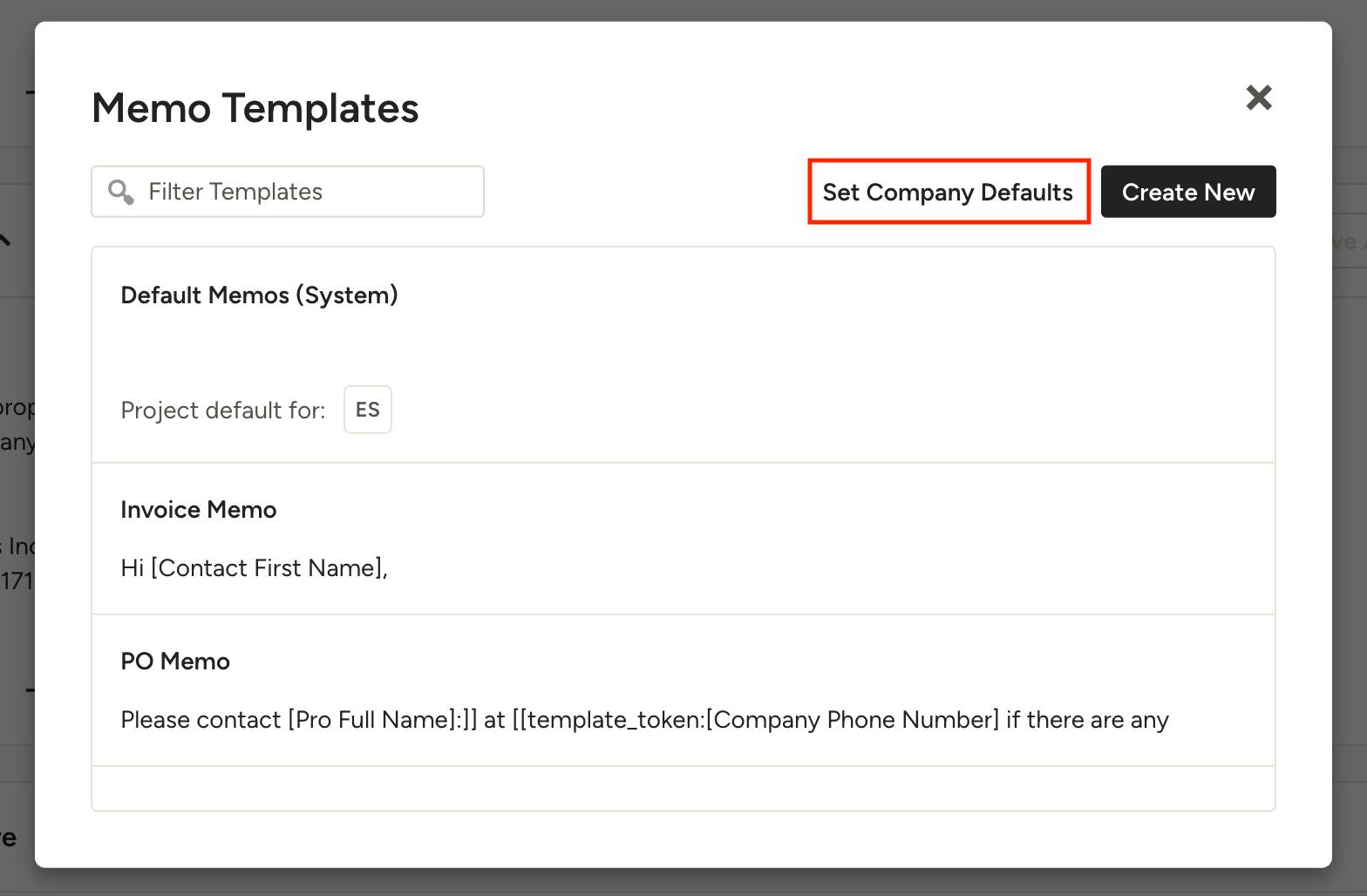
This will save the memo as "Default Memos (System)" and will apply it to new documents – it will not override existing documents' memos. You can always change and edit the default templates anytime in the Default Company Templates screen, as detailed below.
Note: Setting a Project Default Template will override the Company Default Template on any new documents in said project.
Change Company Default Templates
To change the company defaults, click "Set Company Defaults" at the top of the Memo Templates screen, which you can access by clicking My Templates at the bottom of the Memo section of your document.
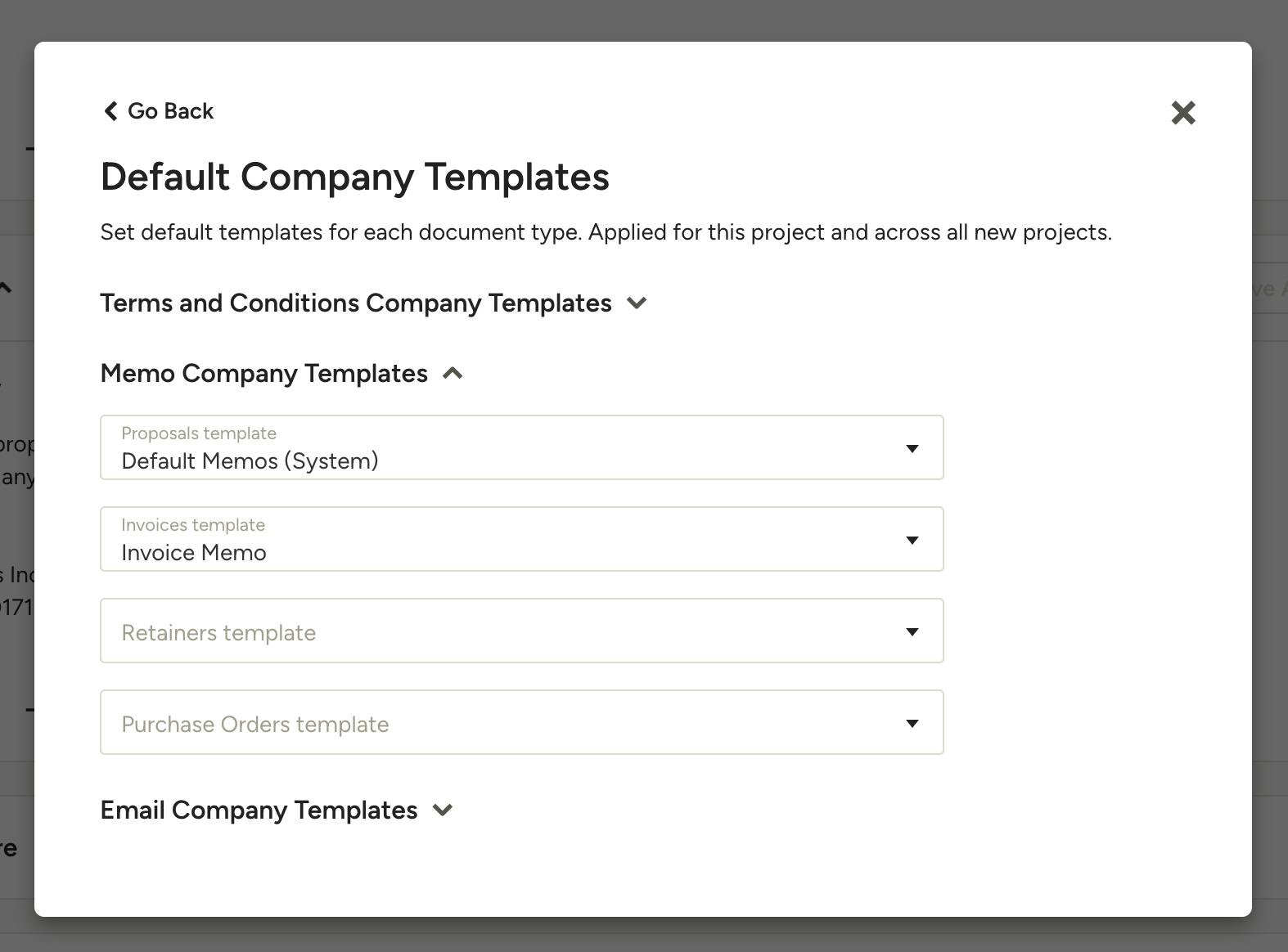
Here you can set the company defaults for terms and conditions, memos, and emails. Simply select which template you want to set as the company default for each section and document type.